

How to upgrade Windows 10 to Windows 11 for free
Before you start
Please ensure you have your valid product key ready before following these installation steps. If you don't have one, purchase one here.
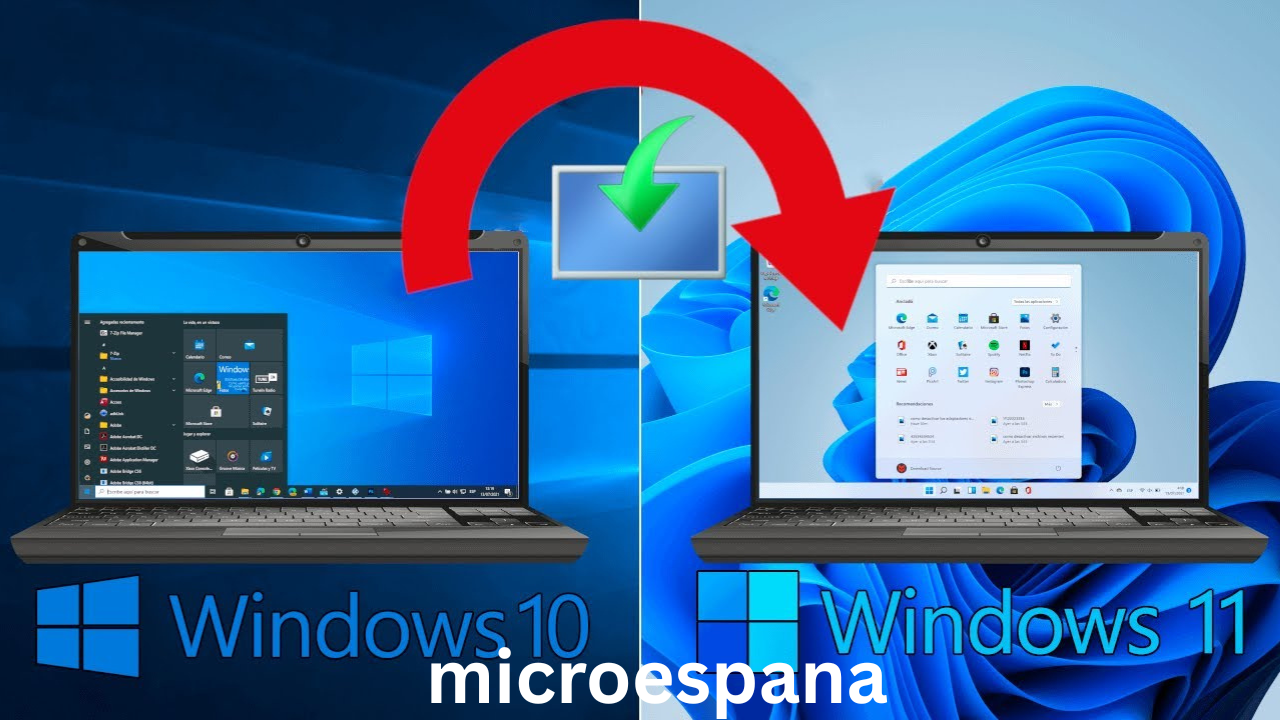
Microsoft’s new operating system, Windows 11, is now available. Although Microsoft promised that Windows 10 would be the last Windows as such, six years later it has finally had to release a new version of the OS, a version that also comes with new technologies and a radical aesthetic change. A Windows clearly designed for the future. An operating system that we can now jump to for free to start enjoying its improvements and new features. Let’s see how.
In fact, we could say that a huge number of regular users of Microsoft’s operating system were waiting for the arrival of this new software. Now, we know that not everyone has been able to upgrade to Windows 11 from the very beginning, as several essential requirements regarding our PC’s hardware must first be met. Nevertheless, below we’ll discuss different methods for carrying out this update in the simplest way possible.
Preliminary steps before updating Windows
Before we start looking at how to update, we remind you that Windows 11 comes with some very strict requirements. The most serious ones are the use of UEFI with Secure Boot and have a TPM 2.0 chip on the motherboard. If we don’t meet these two requirements, we can forget about Windows 11, since we won’t be able to upgrade to it using either of these two methods. And forcing a clean installation on an unsupported PC, while possible, is fraught with problems.
If our computer isn’t compatible, there’s little we can do. However, if we meet the requirements, before continuing, we can perform a series of tasks that will help make the update process more manageable and reduce the chance of errors or something going wrong.
- Update Drivers: Ensure Windows 10 is up to date with the latest cumulative patches and drivers.
- Uninstall Antivirus: Uninstall any antivirus other than Windows Defender to prevent conflicts during the update.
- Backup Data: Perform a backup of your most important files to prevent data loss.
How to upgrade to Windows 11 from Windows Update
Microsoft plans to release the new version of its operating system through Windows Update, just like all other versions. Thus, all users who want to install the operating system quickly and without complications will only have to check for new updates and click the “download and install” which will appear as an optional update.
For this update to appear, we must first make sure that our Windows 10 is updated to version 2004, 20H2 or 21H1 (preferably the latter) and that all updates, both security and optional, are installed on the PC.
When you click the download and install Windows 11 button, the download of the new system will begin and your PC will be prepared for installation. When it’s ready, your computer will restart and continue the setup process.
Microsoft reminds you to update
A few months after the launch of the new operating system we’re talking about in these lines, Microsoft has set itself the serious goal of migrating as many users as possible from previous versions of Windows. Right now, Windows 11 is one of its most important bets and it can’t let time pass and its customers stagnate on other versions.
It’s more than likely that many of you have been noticing an update icon with a blue dot located on the right side of the taskbar. This is a clear reminder that we can click on at any time to perform the migration.
Force update if not available
As usual, Microsoft isn’t going to bring the new version of Windows to all users on day zero. Therefore, it’s possible that this new operating system might not appear in Windows Update yet. We can wait patiently, or we can force the update.
To do this, all we need to do is go to the Windows 11 downloads section and download the tool provided by Microsoft. This tool will allow us to update our computer to the new version of Windows before it reaches Windows Update.
Upgrade to Windows 11 without TPM 2.0
The main problem users will face when installing this operating system on their computers is not meeting the TPM 2.0 requirement or using a CPU incompatible with the new system. Microsoft has created a kind of “back door” that allows us to install the new Windows 11 even if we don’t meet these requirements.
1. Open Registry Editor (regedit) and navigate to:
HKEY_LOCAL_MACHINE > SYSTEM > Setup > MoSetup
2. Create a new 32-bit DWORD value named:
AllowUpgradesWithUnsupportedTPMOrCPU
3. Double-click the value and set it to 1.
After this, restart the computer, and our PC will be configured to bypass these limitations.
How to upgrade from Windows 7 or 8 to Windows 11 for free
If you haven’t yet made the jump to Windows 10, Microsoft won’t let you upgrade directly to the new Windows 11. However, with a couple of intermediate steps, we’ll be able to install the new operating system without any problems.
The only thing we need to do is update our operating system to Windows 10 first. We can do this using the tool from the Microsoft website. Once the update is complete and we have Windows 10 installed, we can follow the steps seen previously to download and install the new update to Windows 11.
What to do after installing Windows 11
Windows 11 changes quite a few things compared to its predecessor. Here are a series of recommendations to help you survive the changes:
- Update Windows and your drivers: Open Settings (Windows + I) > Windows Update and check for updates. Don’t forget to check “Optional Updates” for specific drivers.
- Check your license key: Go to “System > Activation”. If you want to retrieve your key to save it, run this command in CMD:
wmic path softwarelicensingservice get OA3xOriginalProductKey - Disable Cortana: Open Task Manager (Ctrl + Shift + Esc), go to the “Startup” tab, and disable Cortana.
- Configure Start and Taskbar: Go to Settings > Personalization > Taskbar to align icons to the left or hide unwanted buttons like Teams.
- Change Default Programs: Go to Settings > Apps > Default Apps to set your preferred browser (e.g., Chrome) instead of Edge.
- Create a Local Account: When setting up, use the email
no@thankyou.comwith any password. This will force an error and allow you to create an offline local account.
Problems? Leave your PC looking like it just came from the store
Over time, your computer may start to run poorly. You don’t need to format from scratch. Simply open Settings > System > Recovery and use the “Reset this PC” option. You can choose to keep your files or wipe everything for a fresh start.
FAQs
Can I upgrade to Windows 11 from Windows 7/8.1?
Not directly. You must upgrade to Windows 10 first to convert your license key, then upgrade to Windows 11. Note that older hardware running Win 7 likely won’t meet the TPM/Secure Boot requirements for Windows 11.
How much does it cost to upgrade?
It is generally free if you have a legal Windows 10 key (OEM or Retail). If you are on Win 7/8, upgrade to 10 first to get it for free.
Will Windows 10 stop working when official support ends?
No, it will continue to work after October 14, 2025, but it will no longer receive security updates, making it vulnerable to attacks. Upgrading is highly recommended.