

How to install Windows 11 Pro
Before you start
Please ensure you have your valid product key ready before following these installation steps. If you don't have one, purchase one here.
After several years with us, Windows 10 has begun to give way to Windows 11. This new operating system comes with quite a few changes in both its features and appearance, and the best part is that it’s available completely free for users of the previous operating system.
If you don’t know where or how to download Windows 11 to install it on your computer, we’ll tell you all the ways you can do it, as well as clarify everything you need to know about the new operating system.
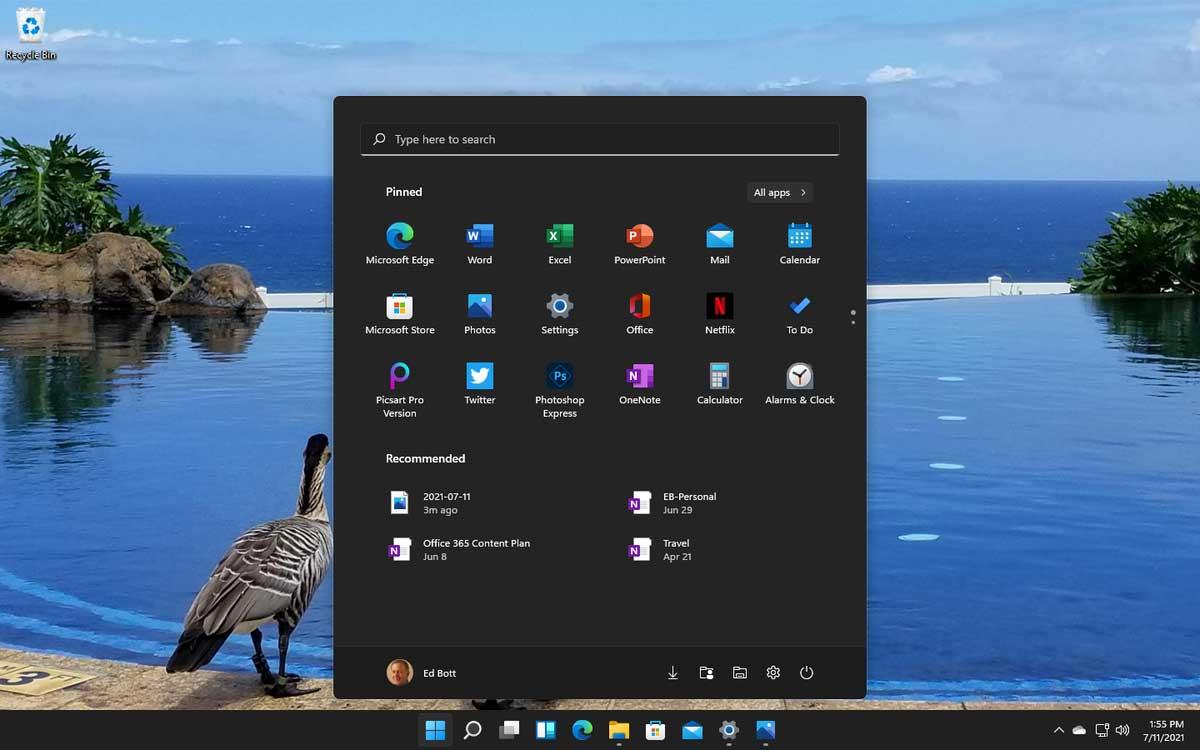
Figure 1: Windows 11 Interface
We also find other performance improvements, accessibility enhancements, and gaming-specific enhancements such as DirectX 12 Ultimate, Direct Storage, and Auto HDR.
Requirements to update
To install Windows 11 on your computer, you must check that it meets all the requested hardware requirements. Microsoft has announced that this update will be available on new eligible devices.
- Processor: 1 GHz or faster with 2 or more cores on a compatible 64-bit processor or SoC.
- RAM: 4 GB or more.
- Storage: 64 GB or larger storage device.
- System Firmware: UEFI, Secure Boot capable.
- TPM: Trusted Platform Module (TPM) version 2.0.
- Graphics Card: DirectX 12 compatible or later with WDDM 2.0 driver.
- Display: High definition (720p) display that is greater than 9” diagonally, 8 bits per color channel.
- Internet Connection: Required for updates and initial setup (especially for Home edition).
Check for Updates
Go to Settings > Update & Security > Windows Update to see if your PC is ready.
Other specific requirements
Some features in Windows 11 have requirements beyond the minimum specs:
- 5G Support: Requires a 5G capable modem.
- Auto HDR: Requires an HDR monitor.
- BitLocker to Go: Requires a USB flash drive (available in Windows Pro and above).
- Client Hyper-V: Requires a processor with SLAT capabilities (Windows Pro and above).
- DirectStorage: Requires an NVMe SSD and DirectX12 GPU with Shader Model 6.0.
- DirectX 12 Ultimate: Available with supported games and graphics chips.
- Windows Hello: Requires a camera configured for near-infrared (IR) imaging or fingerprint reader.
How to update or download Windows 11
1. Windows Update
The most convenient way is via Windows Update. If your PC is compatible, you will see a notification.
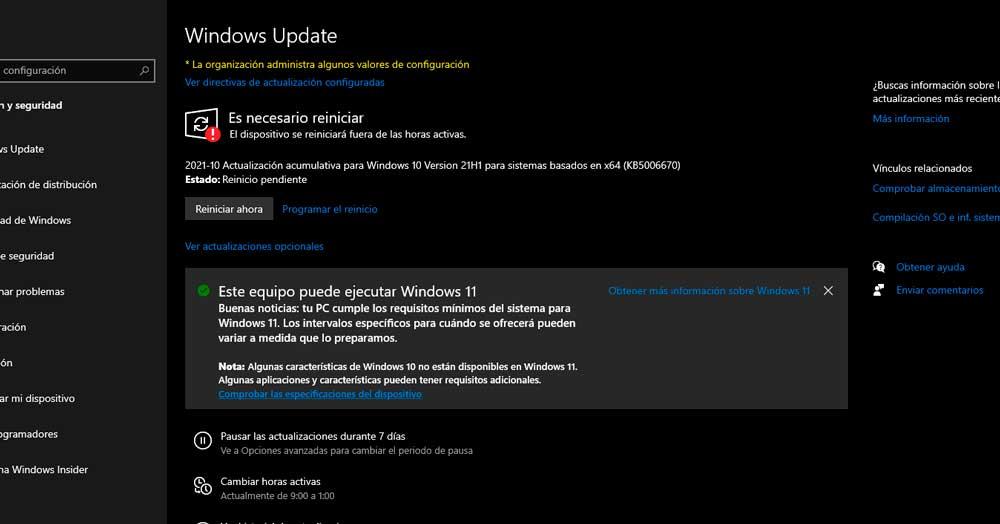
Figure 2: Windows Update Notification
2. Update Wizard (Assistant)
You can force the update using the Windows 11 Installation Assistant. Download it from the Microsoft website, run as administrator, and follow the steps.
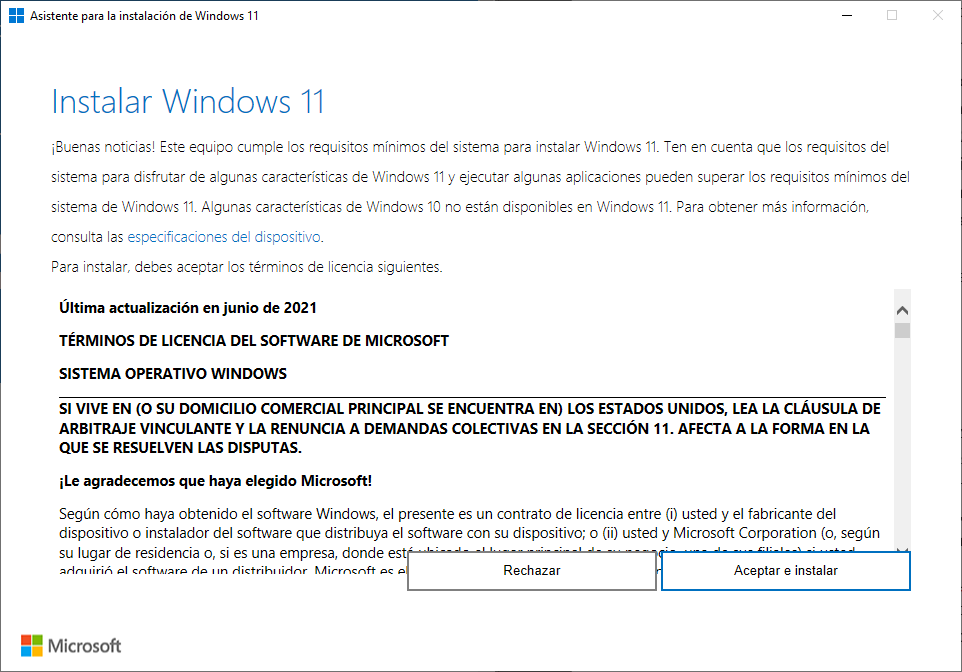
Figure 3: Installation Assistant
3. Media Creation Tool
For a clean install, use the Media Creation Tool to create a bootable USB or DVD.
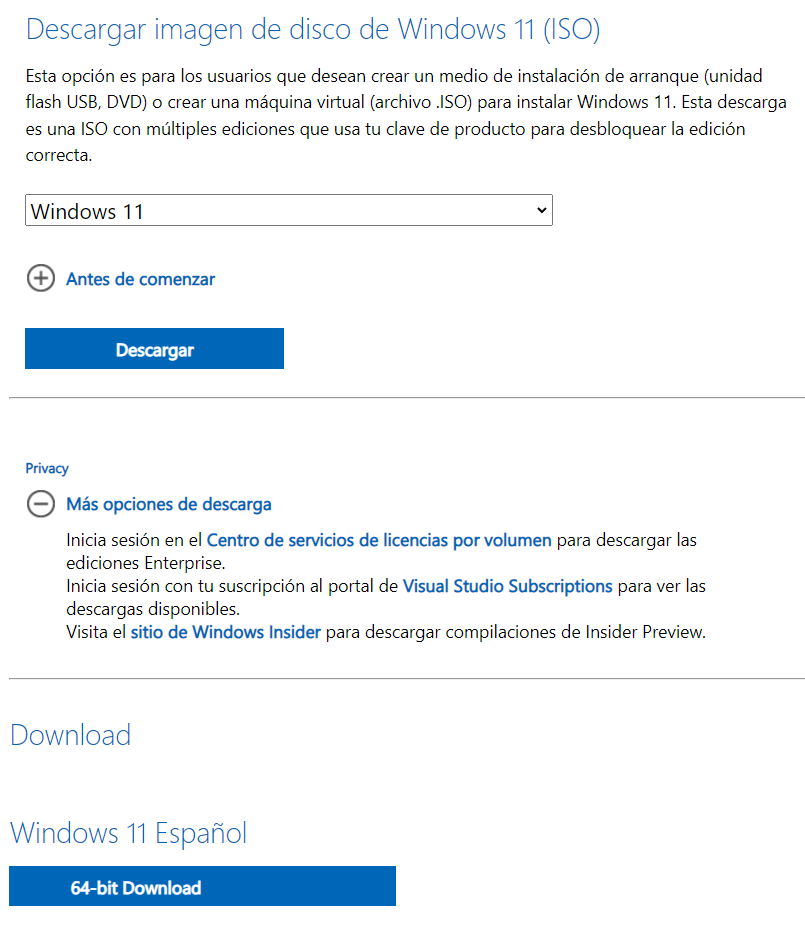
Figure 4: Download Windows 11 Disk Image
Upgrading an unsupported PC
If your PC lacks TPM 2.0, you can bypass the check via Registry Editor:
- Press Shift + F10 during setup to open Command Prompt.
- Type
regeditand go to HKEY_LOCAL_MACHINE\SYSTEM\Setup. - Create a new key named LabConfig.
- Inside, create DWORD (32-bit) values:
BypassTPMCheck,BypassRAMCheck, andBypassSecureBootCheck. Set their values to 1.
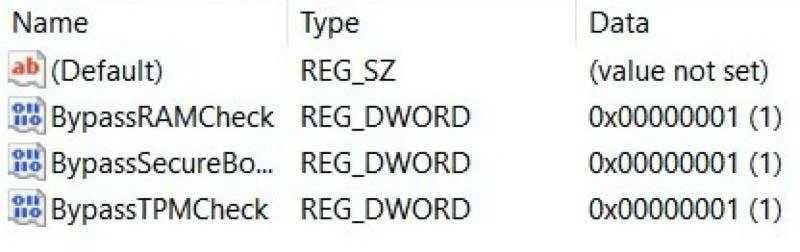
Figure 5: Registry Bypass Method
Alternatively, use Rufus to create a bootable USB that automatically removes these restrictions.
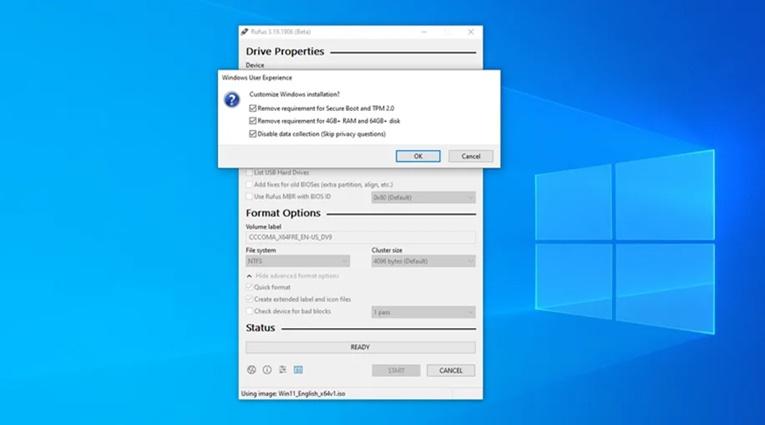
Figure 6: Rufus Bootable USB Tool
Windows 11 Editions
- Home: Standard version for most users.
- Pro: For professionals; includes BitLocker and domain join.
- Enterprise: For large organizations.
- Education: Similar to Enterprise, tailored for schools.
What is Windows 11 SE?
Windows 11 SE is a cloud-first operating system designed for education (K-8). It is optimized for low-cost devices and offers a simplified, distraction-free environment managed by IT administrators via Intune for Education.
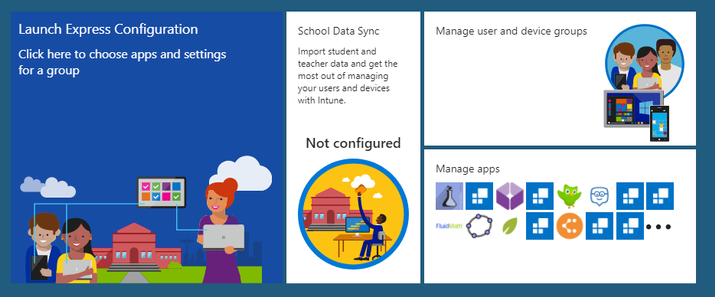
Figure 7: Intune for Education Portal
Key Differences: Apps launch in full screen, no widgets, simplified snap layouts, and strictly controlled app installation (only admins can install apps).
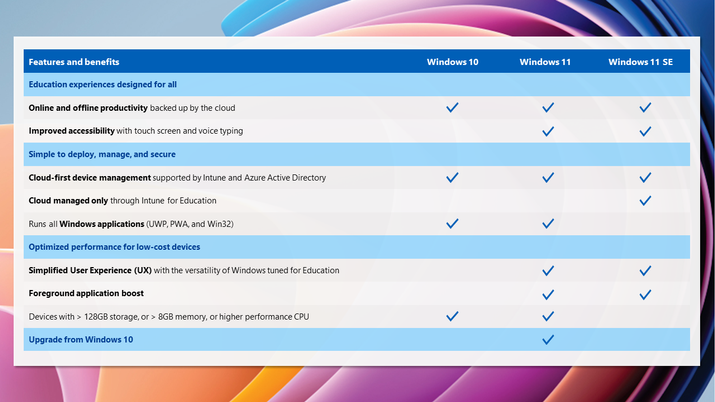
Figure 8: Windows 11 SE Features
I hate Windows 11, can I go back to Windows 10?
Yes, but you have a limited window. You can easily roll back within the first 10 days via Settings > System > Recovery > Go back.
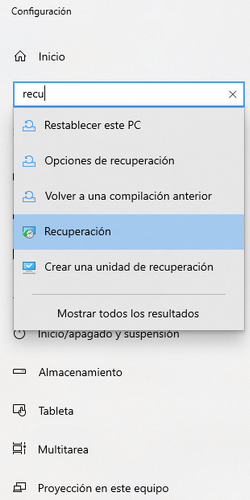
Figure 9: Recovery Options
If 10 days have passed, you must perform a clean installation of Windows 10 using the Media Creation Tool, which will erase your data. Always back up your files before proceeding.
More Info?
WhatsApp: 0034677285503