How to install a clean Windows 11
Before you start
Please ensure you have your valid product key ready before following these installation steps. If you don't have one, purchase one here.
We want to show you how to install the perfect Windows 11. We are aware that there are several different ways to install Windows 11. However, here, we want to show you the most user-friendly option.
System Requirements for Windows 11
Over the course of time, Microsoft has adjusted the system requirements for Windows 11 several times. This may also happen in the future to adapt to new standards.
- Processor: 1 gigahertz (GHz) or faster with 2 or more cores on a compatible 64-bit processor or System on a Chip (SoC).
- RAM: 4 gigabyte (GB). (We recommend at least 32GB for current gaming systems).
- Storage: 64 GB or larger storage device. (We recommend an NVMe M.2 SSD for speed).
- System Firmware: UEFI, Secure Boot capable.
- TPM: Trusted Platform Module (TPM) version 2.0.
- Graphics Card: Compatible with DirectX 12 or later with WDDM 2.0 driver.
- Display: High definition (720p) display > 9” diagonally.
- Internet & Account: Requires internet connectivity and a Microsoft account for initial setup.
What do you require for a Windows 11 installation?
- One-time access to a 2nd PC/Laptop with Windows 10/11.
- USB stick with at least 16GB of space.
- Media Creation Tool.
- Windows 11 license (incl. key).
Preparation: UEFI BIOS
It is important that your operating system runs on a solid foundation. We recommend ensuring your UEFI BIOS is up to date.
Important BIOS Settings
- DRAM: Enable XMP/EXPO or D.O.C.P. profiles.
- Chipset: Enable Resize BAR / SAM for better performance.
Downloading and using Media Creation Tool
- Go to the Microsoft Windows 11 landing page.
- Click “Download Now” under “Create Windows 11 installation media”.
- Insert your USB flash drive into the PC.
- Start the tool and click “Accept“.
- Select language and click “Next“.
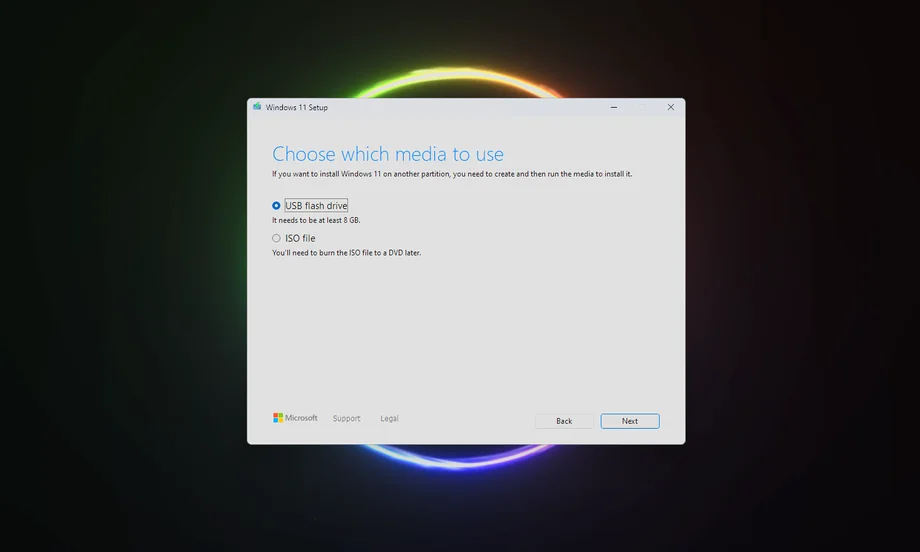
- Select “USB Flash Drive” as the installation method.
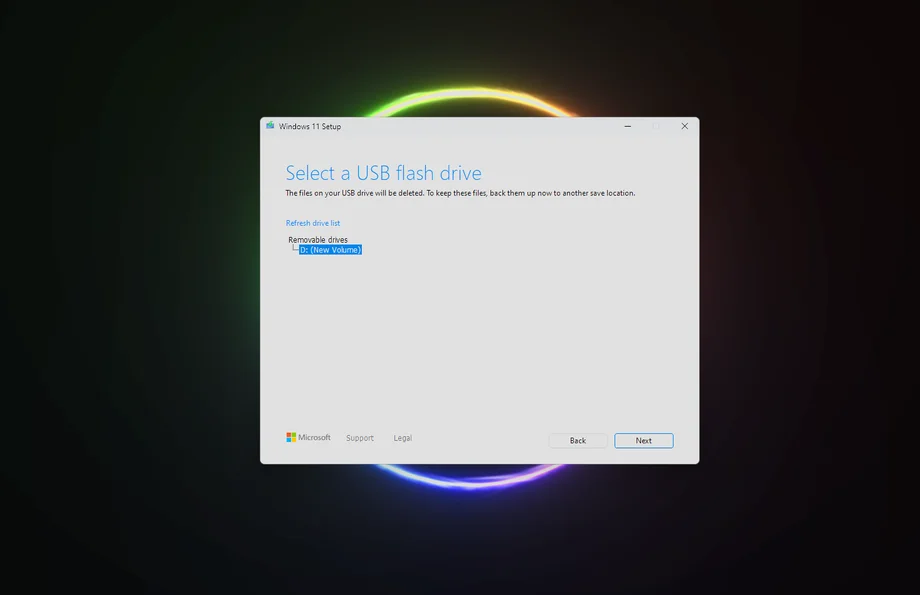
- Select your USB drive and click “Next“.
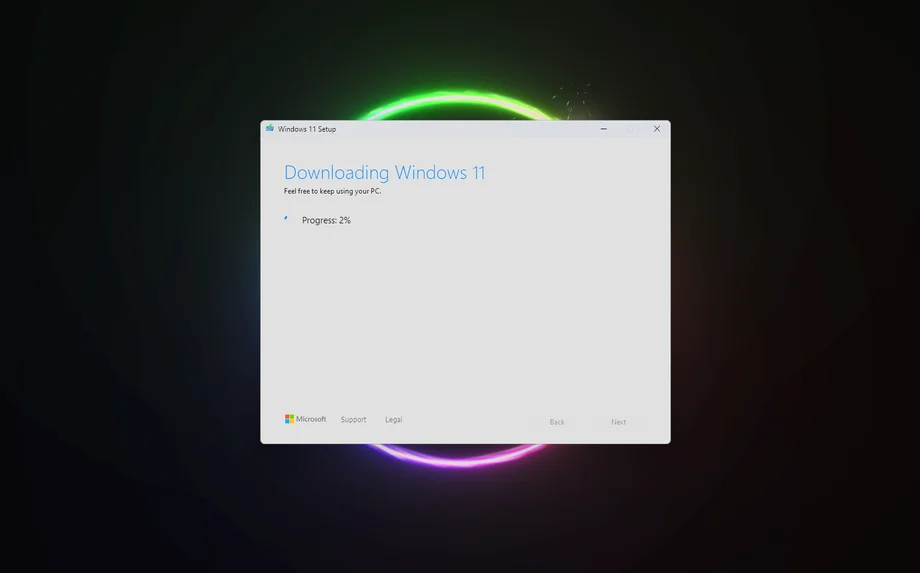
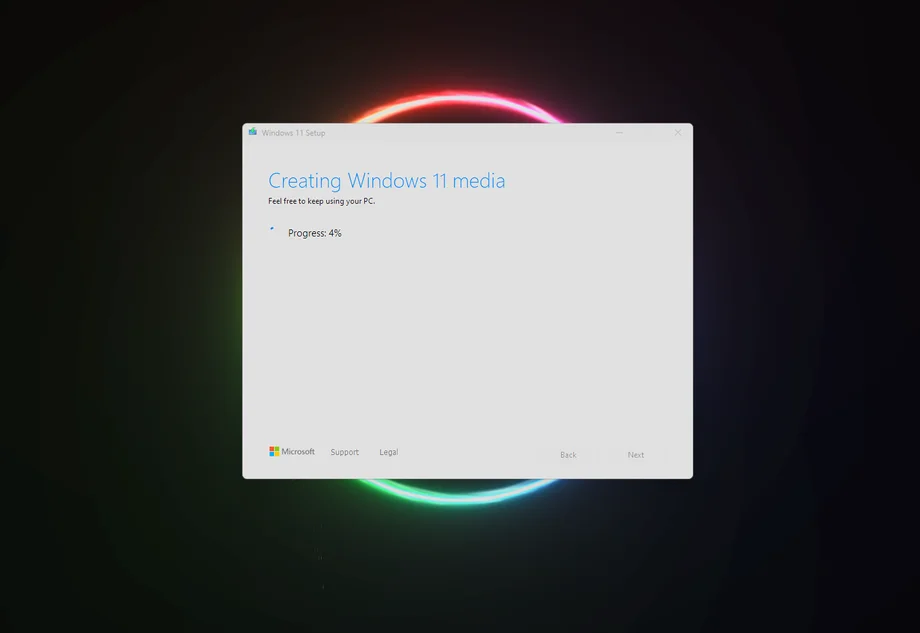
- Wait for the download and creation process to finish. Click “Finish” when done.
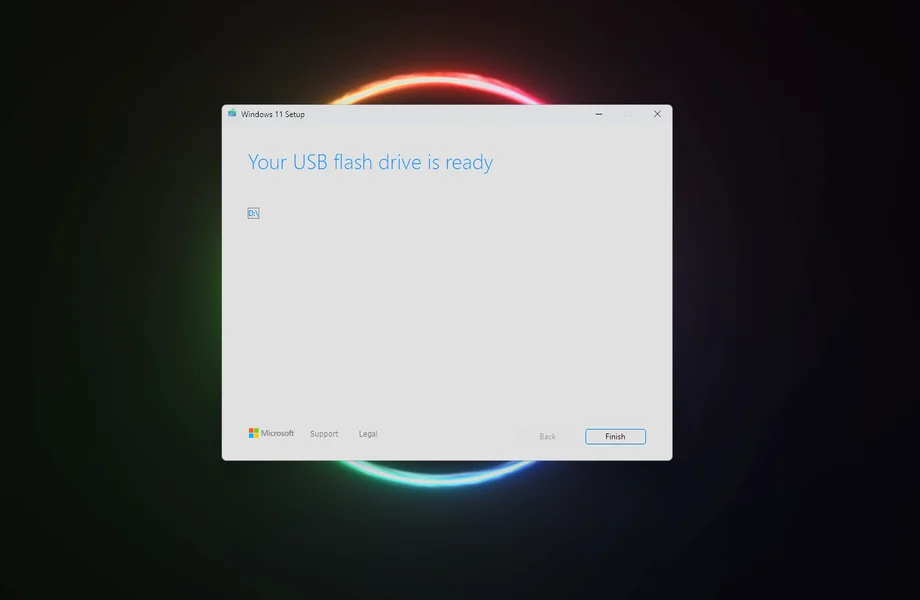
Starting the Windows 11 setup
Insert the USB stick into the PC where you want to install Windows. Ensure monitor, mouse, keyboard, and LAN cable are connected.
- Boot your PC from the USB stick.
- Select Language, Time, and Keyboard, then click “Next“.
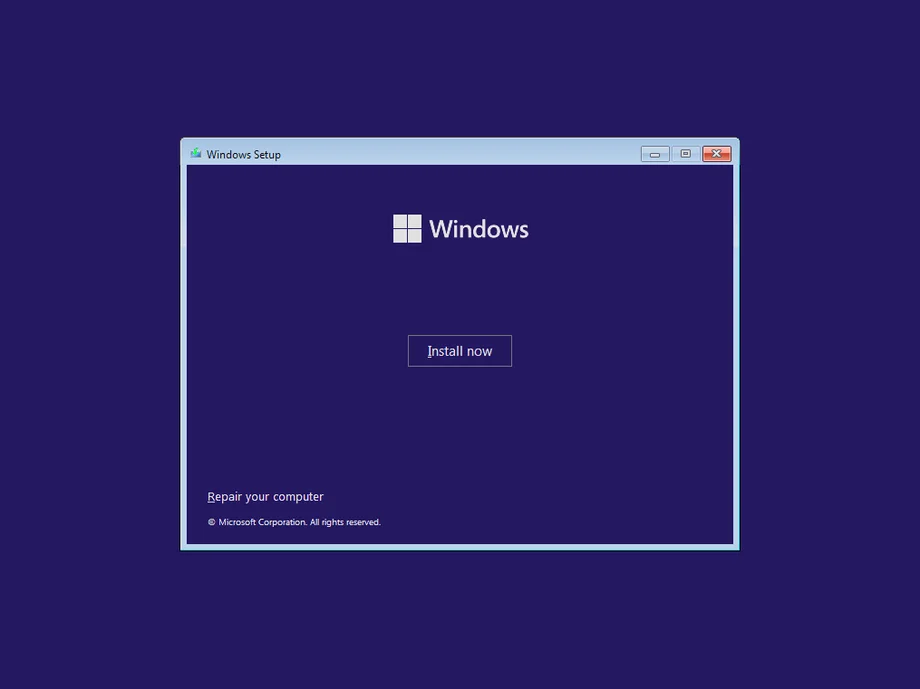
- Click “Install now“.
- Enter your license key (or click “I don’t have a product key” to do it later).
- Select the correct Windows 11 version if prompted.
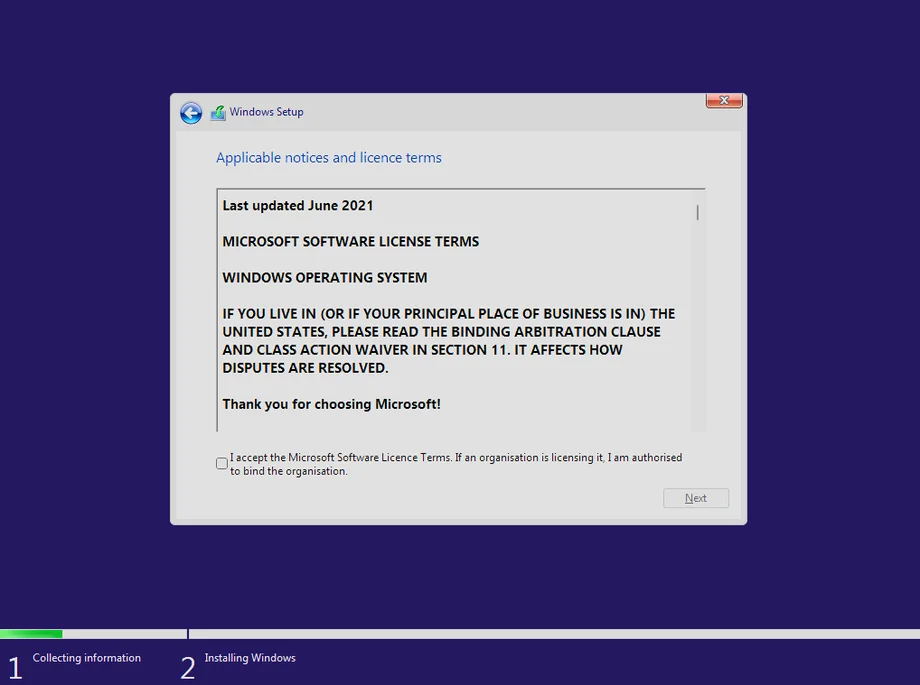
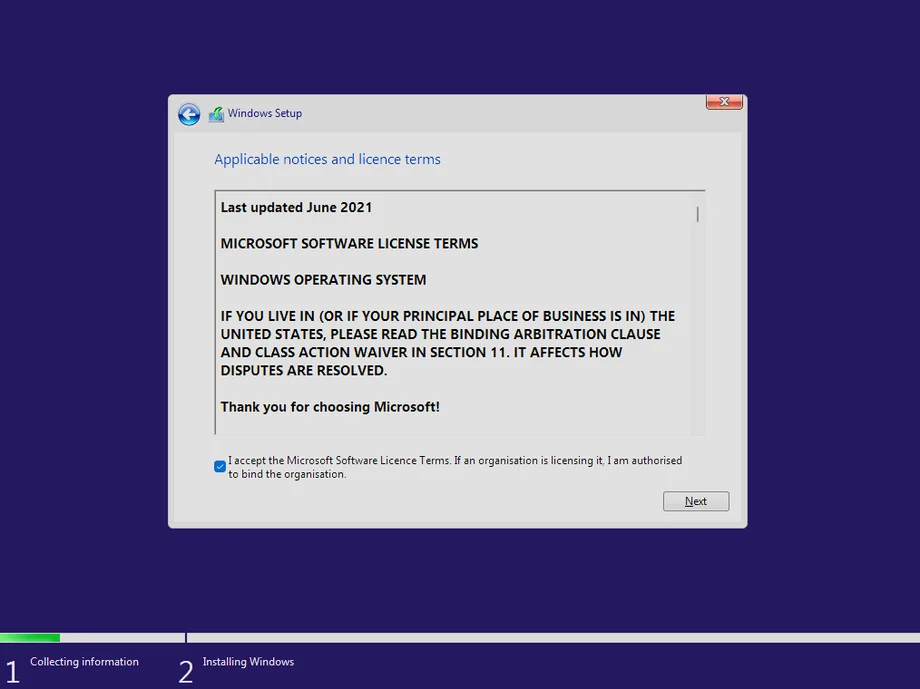
- Accept the license terms.
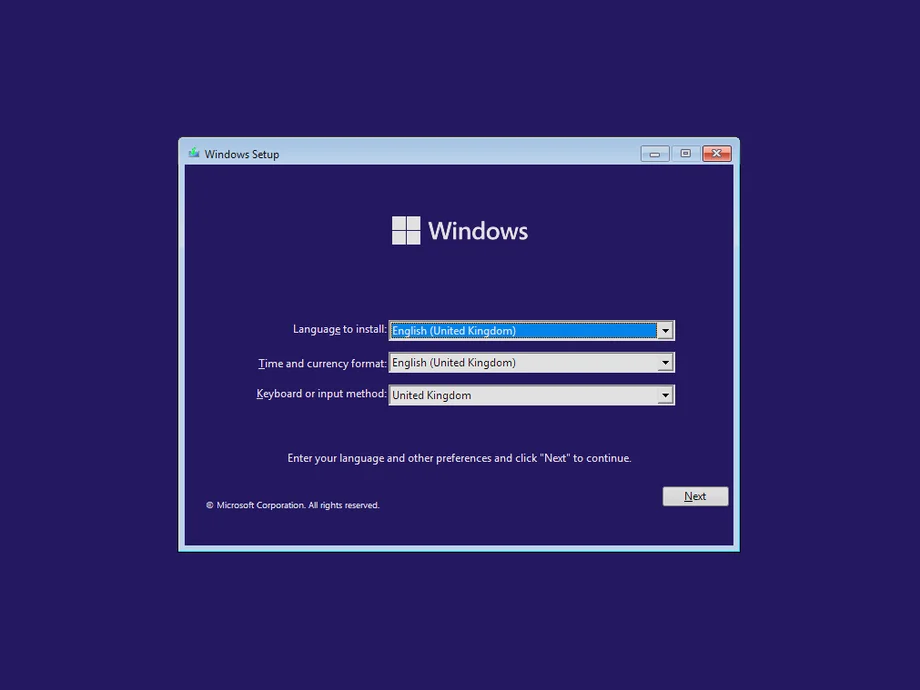
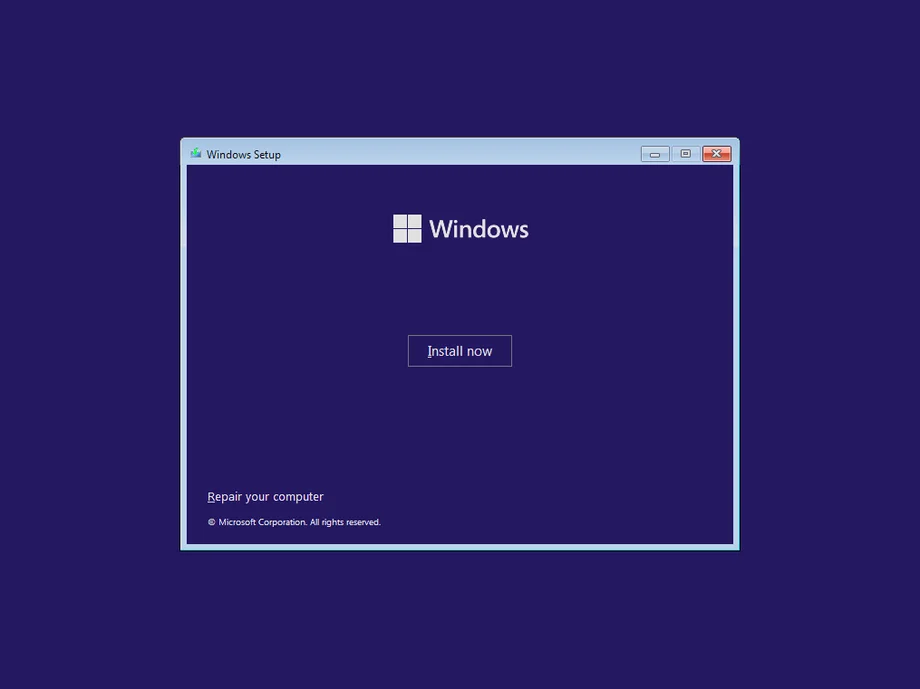

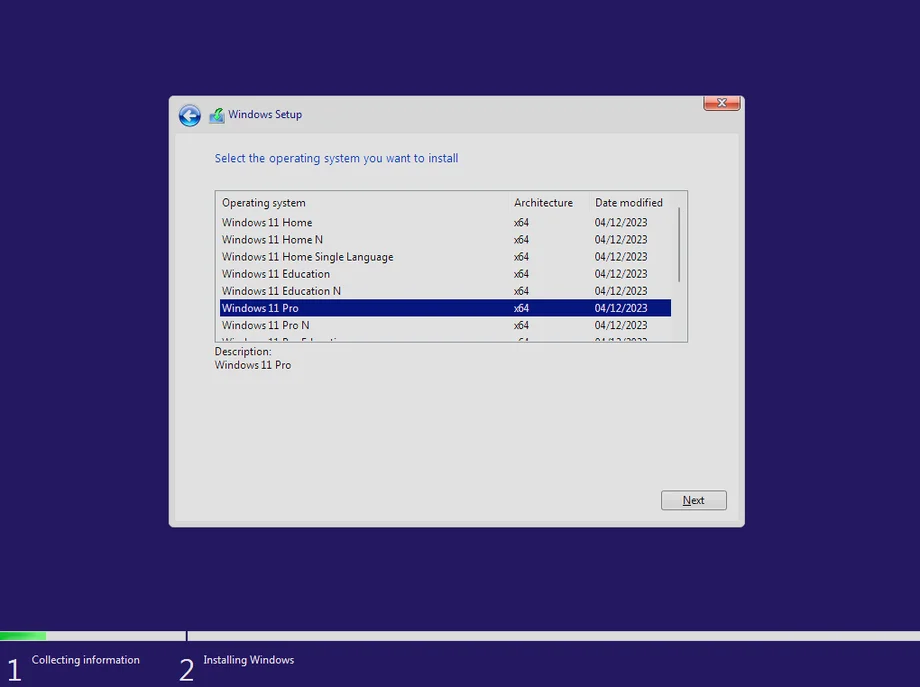
Install Windows 11 on a drive
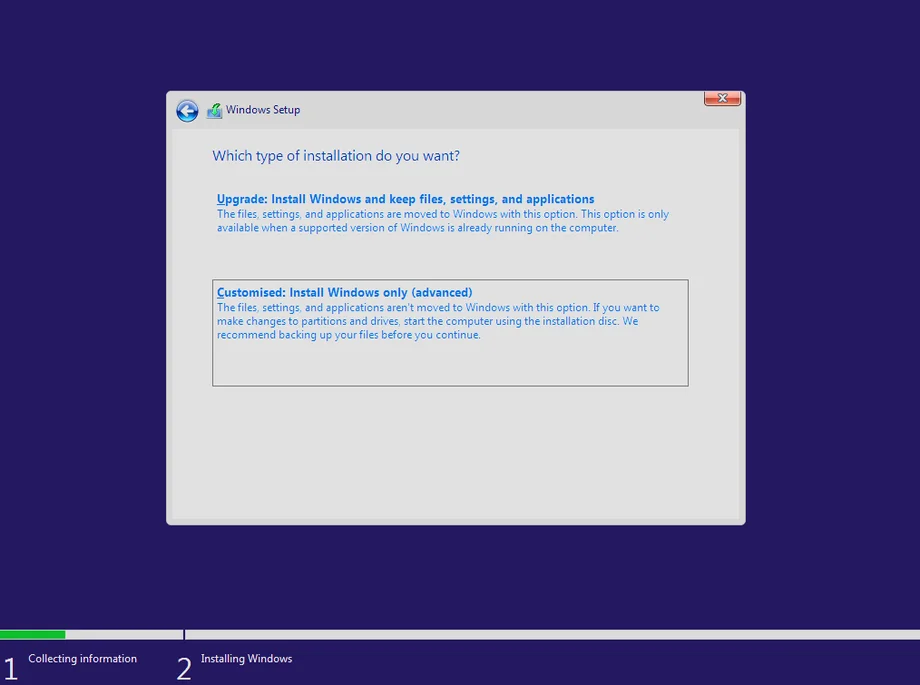
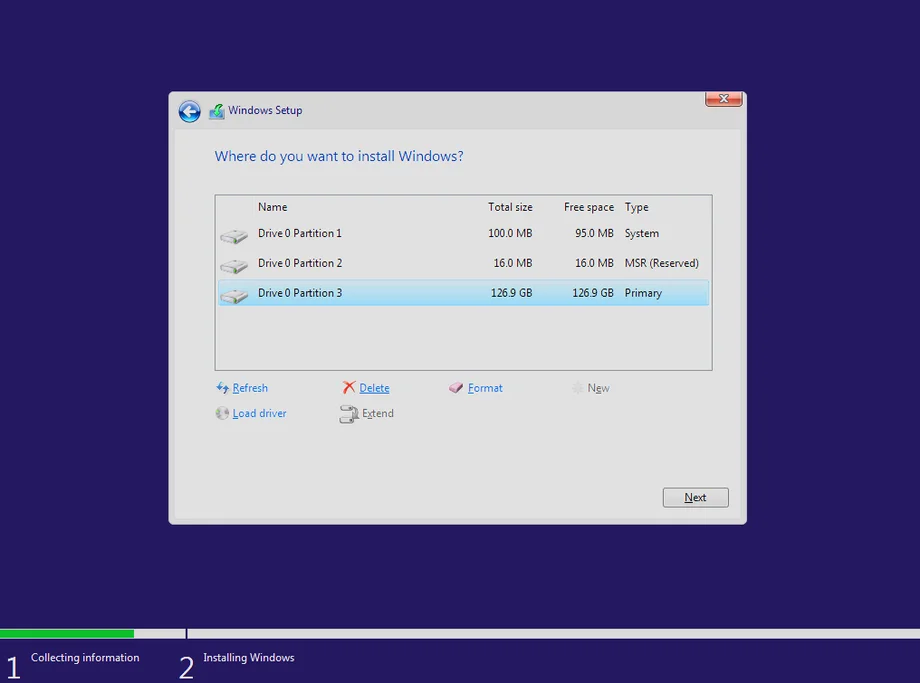
- Select “Custom: Install Windows only (advanced)“.
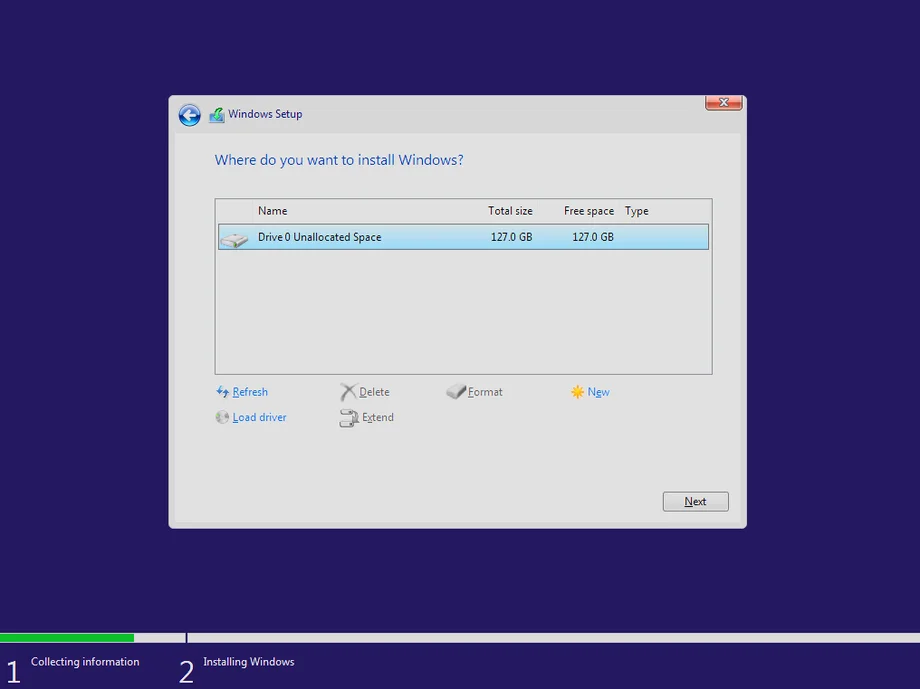
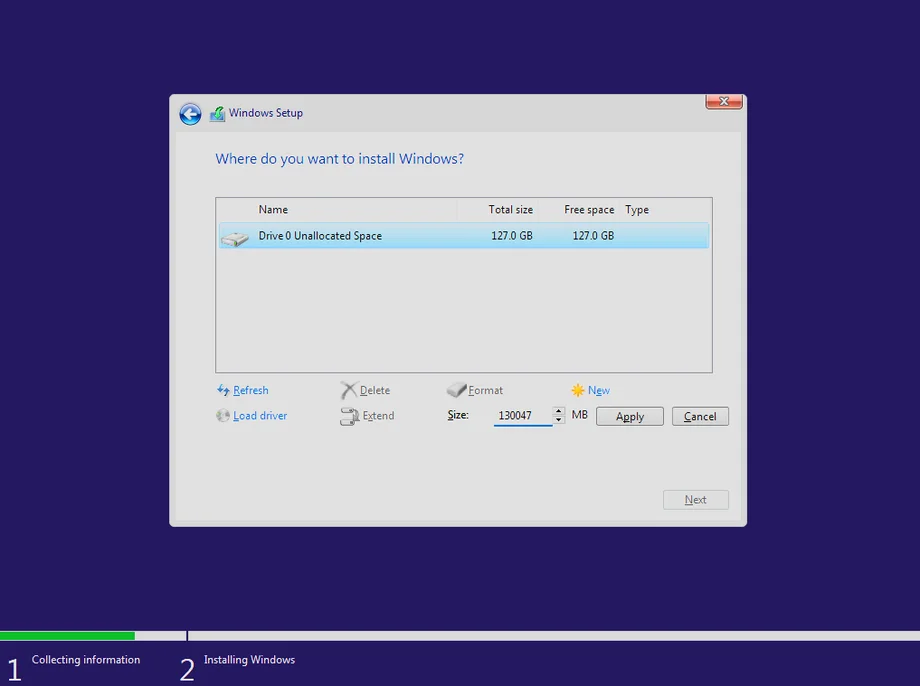
- Cleaning old partitions: If re-installing, select each partition on Drive 0 and click “Delete” until you see only “Drive 0 Unallocated Space”.
- Select “Drive 0 Unallocated Space” and click “Next” (or “New” to specify size, but normally just Next is fine for full usage).
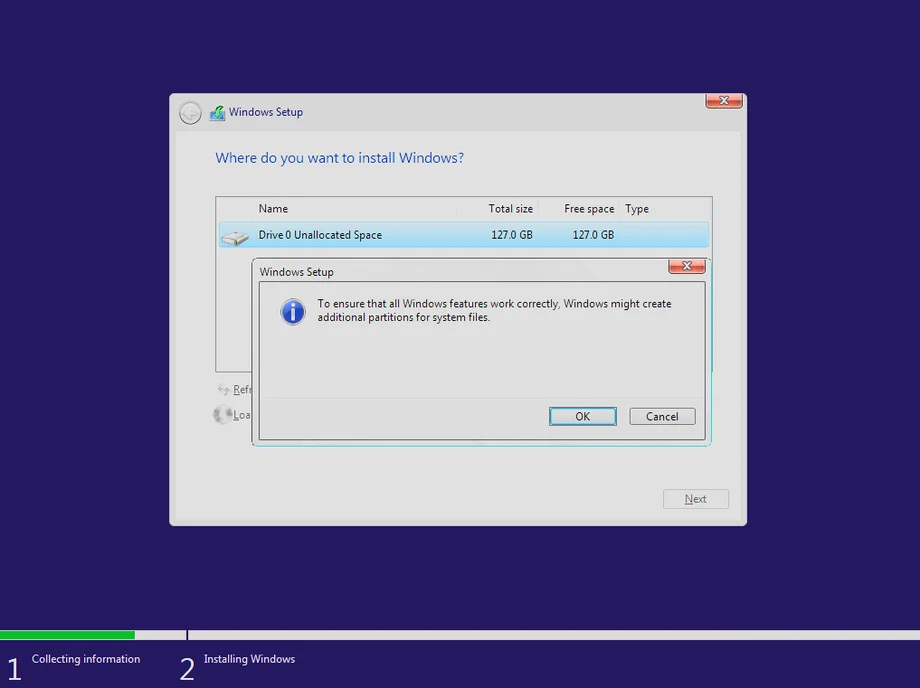
- Windows will create necessary system partitions automatically. Click “OK“.
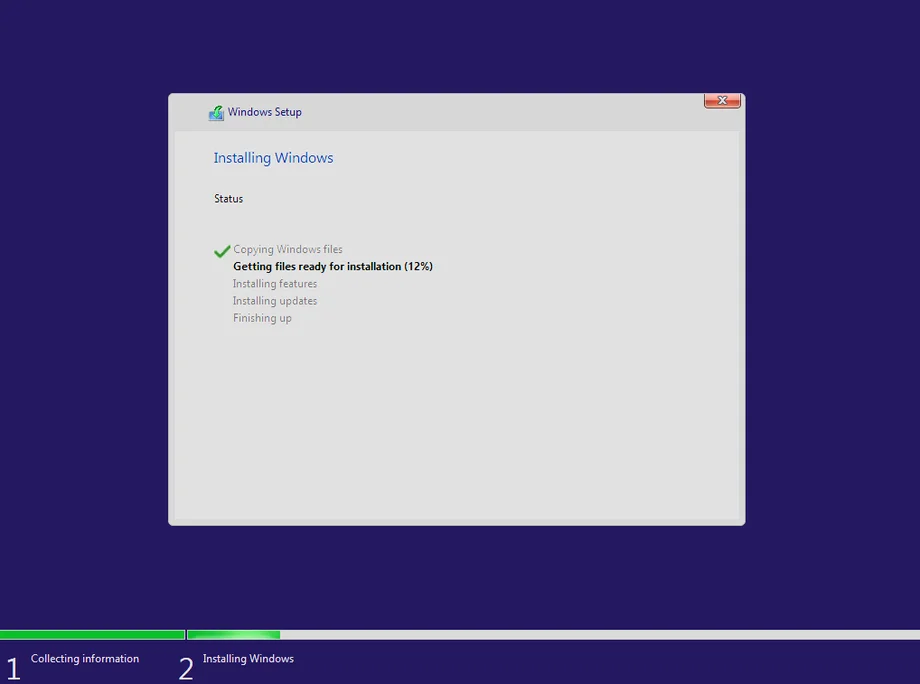
- The installation will begin. The PC will restart automatically when finished.
Complete the Windows Setup process
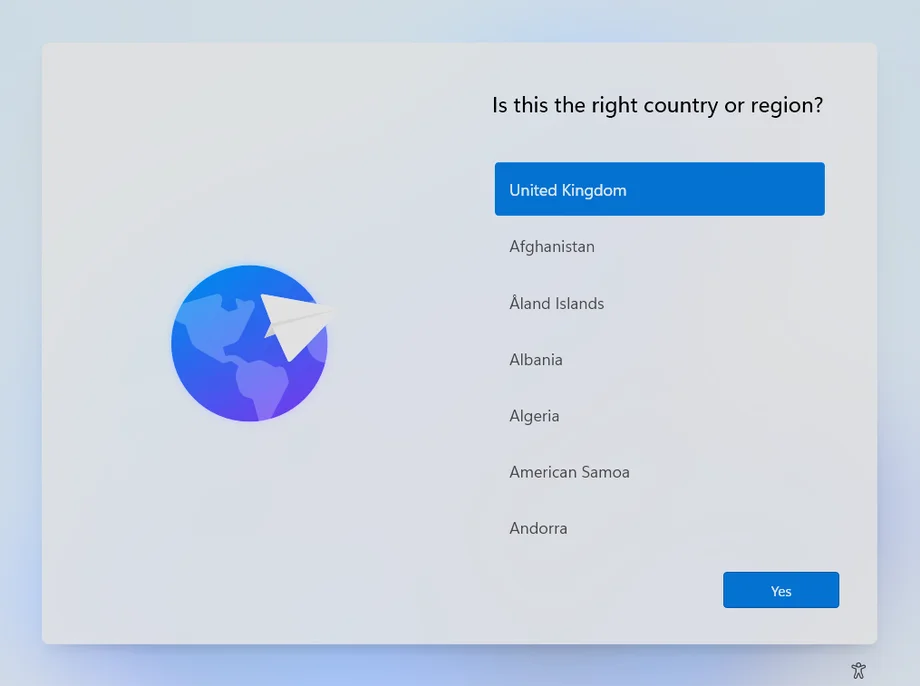
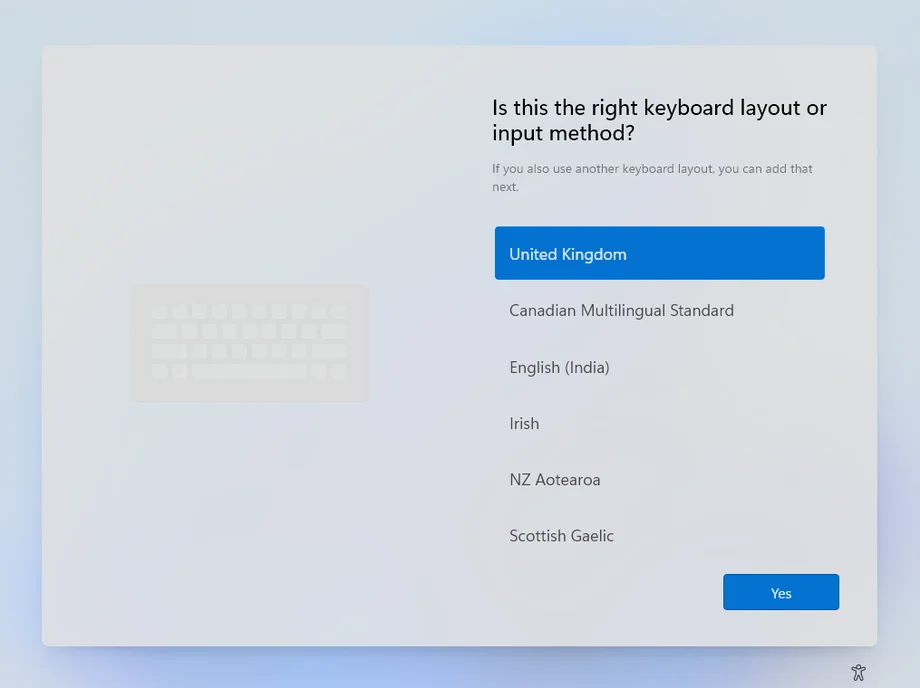
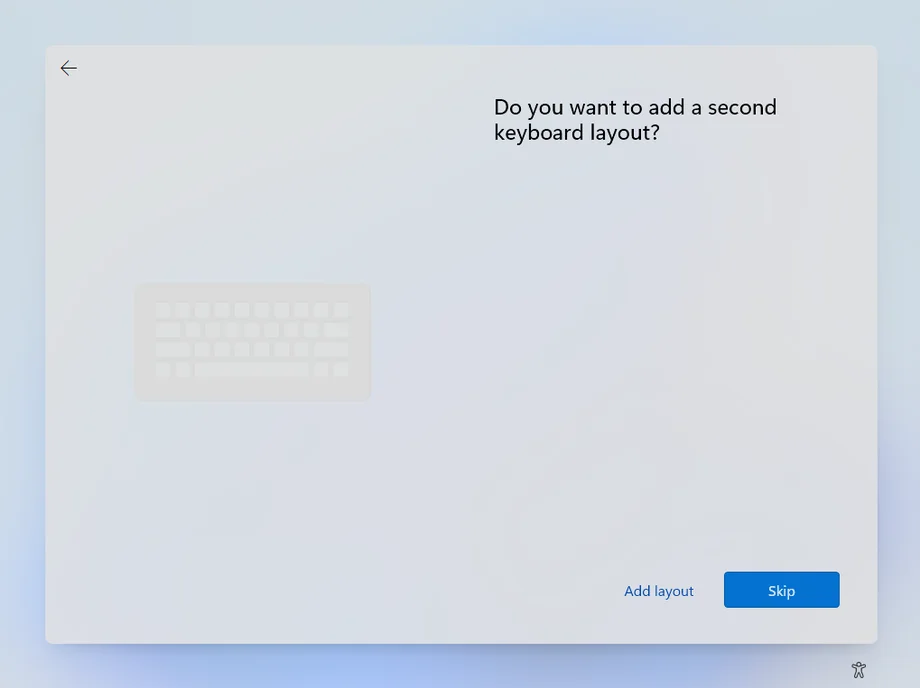
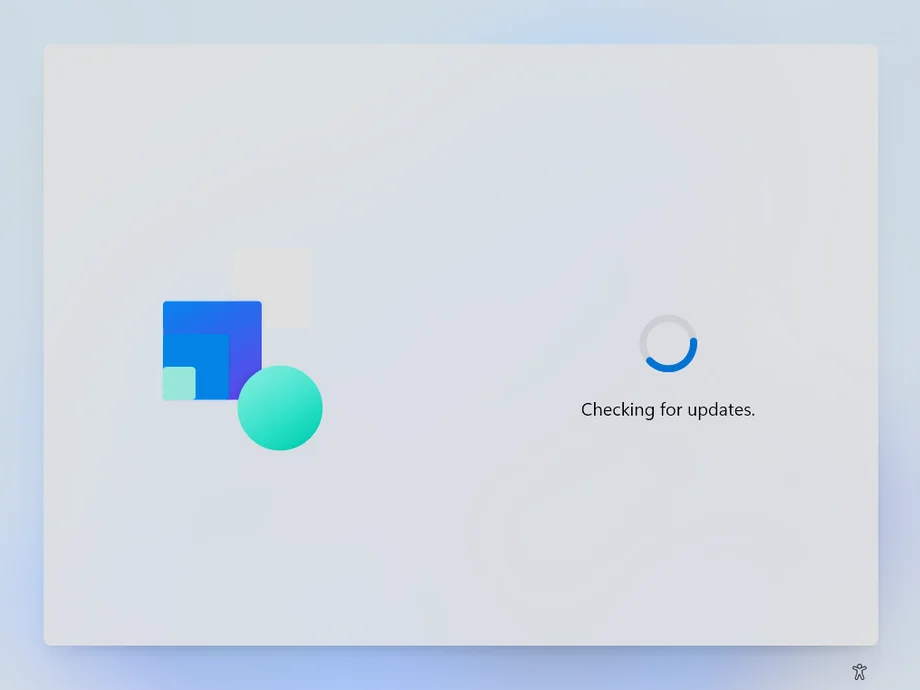
- Select Country and Keyboard Layout. Skip 2nd keyboard layout.
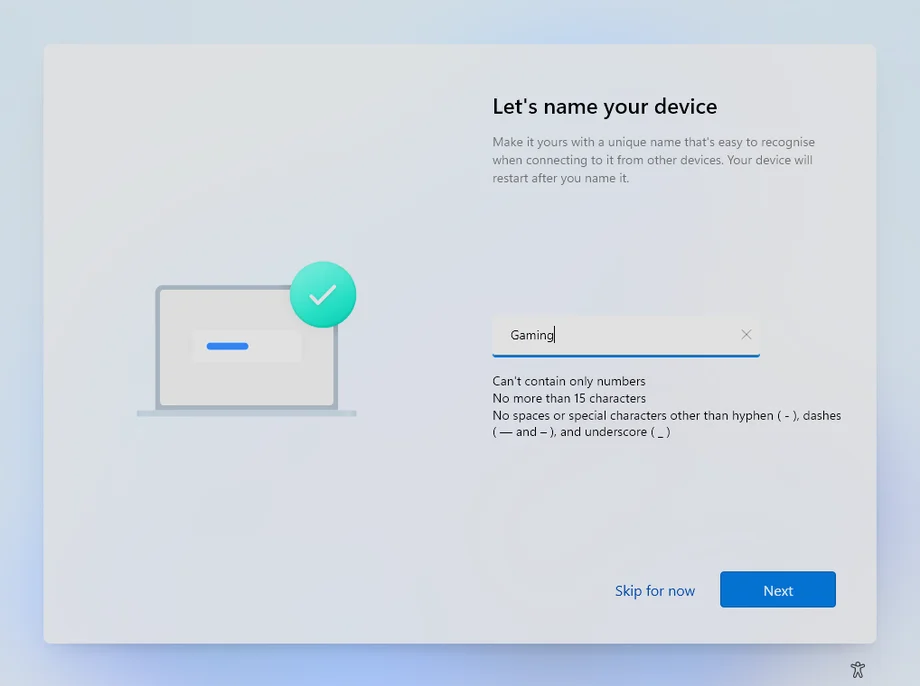
- Name your device: Give it a name like “Gaming-PC”.
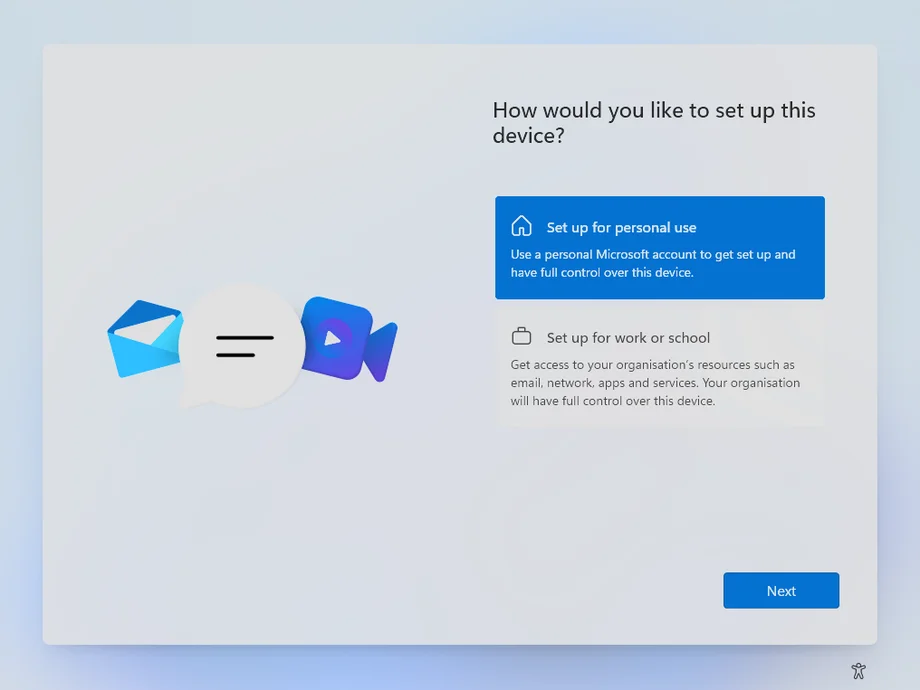
- Usage: Select “Setup for personal use”.
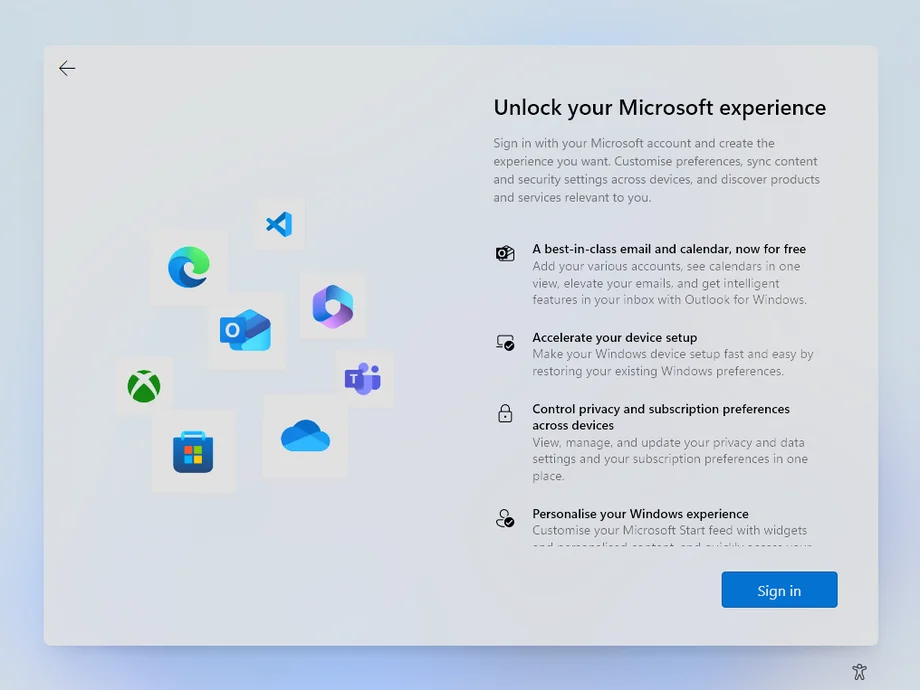
- Sign in: Log in with your Microsoft Account (or create one).
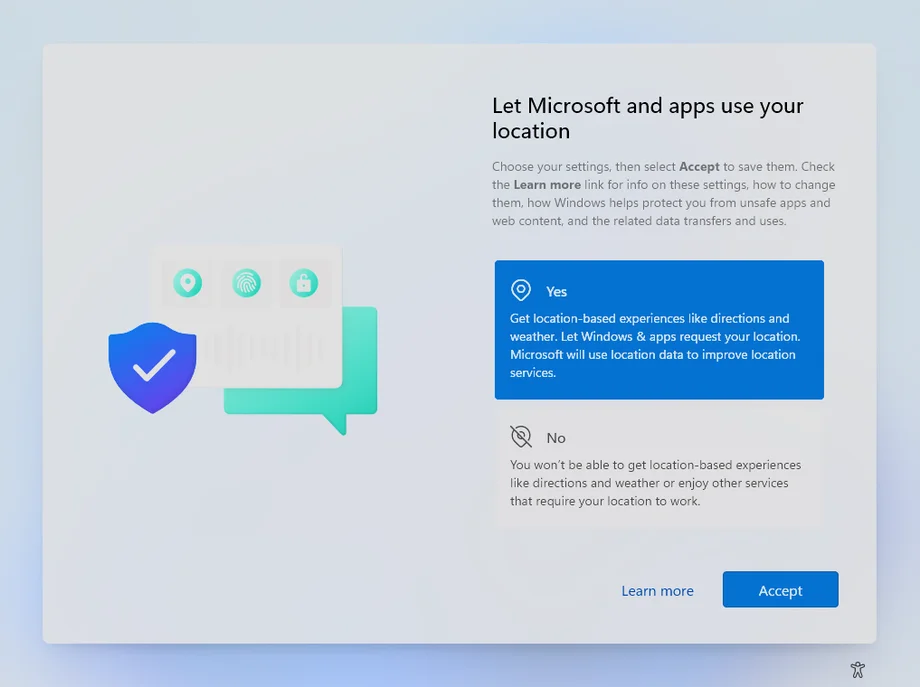
- Privacy Settings:
- Location: Yes (for regional apps/games).
- Find my device: Yes (useful for laptops).
- Diagnostic data: Required only.
- Inking & typing: No (unless using a stylus).
- Tailored experiences: No.
- Advertising ID: Yes (important for Xbox/GamePass).
What should you do first after installing Windows 11?
It is crucial to install specific drivers in the correct order for optimal performance.
1. Chipset Drivers
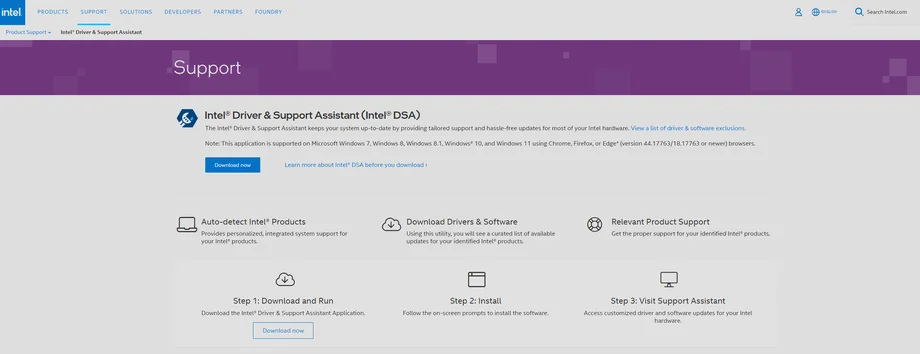
Download the auto-installer for your CPU manufacturer:
2. Video Card Drivers
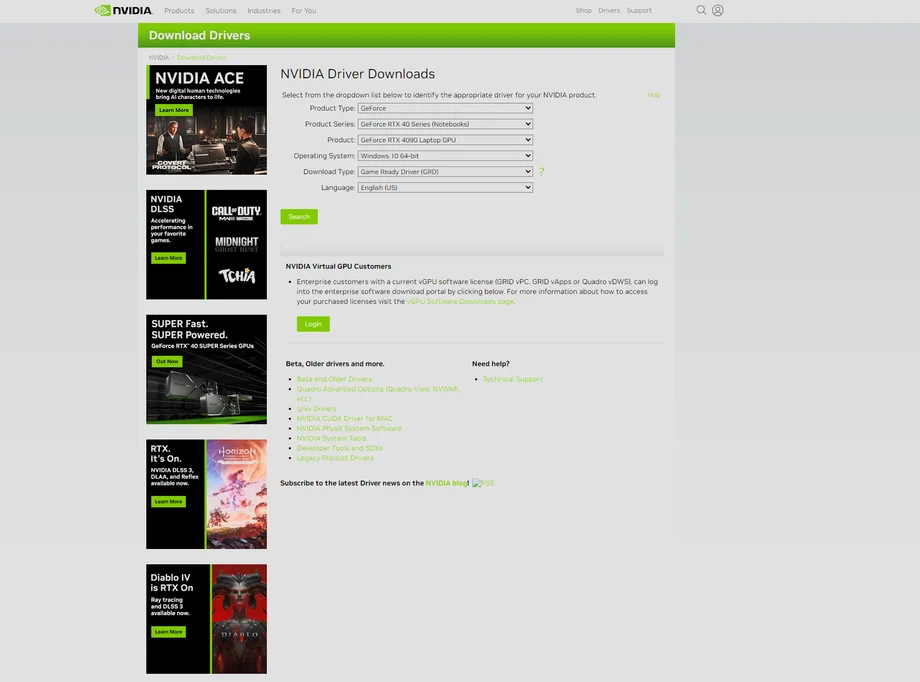
Nvidia: Use the Nvidia App or download manually.
AMD/Intel: Usually handled by the auto-installers above.
3. Windows Updates
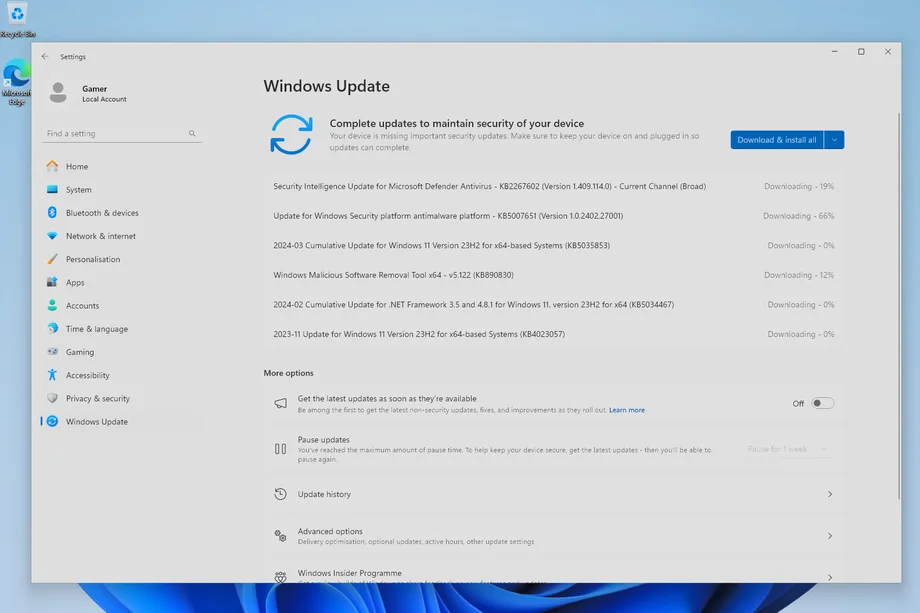
Go to Settings > Windows Update > Check for updates. Install all pending updates and restart your PC.