


Customizing Keyboard Shortcuts in Windows: 12 Tricks to Work Faster
Speed transforms the way you work on a computer. When you start customizing keyboard shortcuts in Windows, simple actions become instant responses. You stop chasing menus and begin controlling tasks with precision. This shift improves focus and builds strong workflow rhythm. With smart keyboard remapping and thoughtful key customization, your system starts to feel personal. For example, assigning quick commands through shortcut configuration reduces delays during busy tasks. Over time, even small changes create powerful results. Many users also explore automation tools to handle repetitive actions faster. In the end, mastering shortcuts leads to smoother navigation, better control, and consistent productivity every day.
Why Custom Keyboard Shortcuts Improve Productivity and Speed
Speed defines modern work habits. When you rely on menus, your focus breaks. However, custom keyboard shortcuts in Windows remove friction instantly. You press keys, and actions happen. This creates smooth flow. Over time, productivity enhancement becomes noticeable. Your hands stay active, and your mind stays engaged.
Moreover, keyboard remapping and key customization reduce mental effort. You don’t search for options anymore. Instead, your fingers remember patterns. For example, replacing Caps Lock with a useful function improves control. This subtle input optimization transforms daily routines into fast, predictable workflows.
How to Create Custom Keyboard Shortcuts in Windows (Step-by-Step Guide)
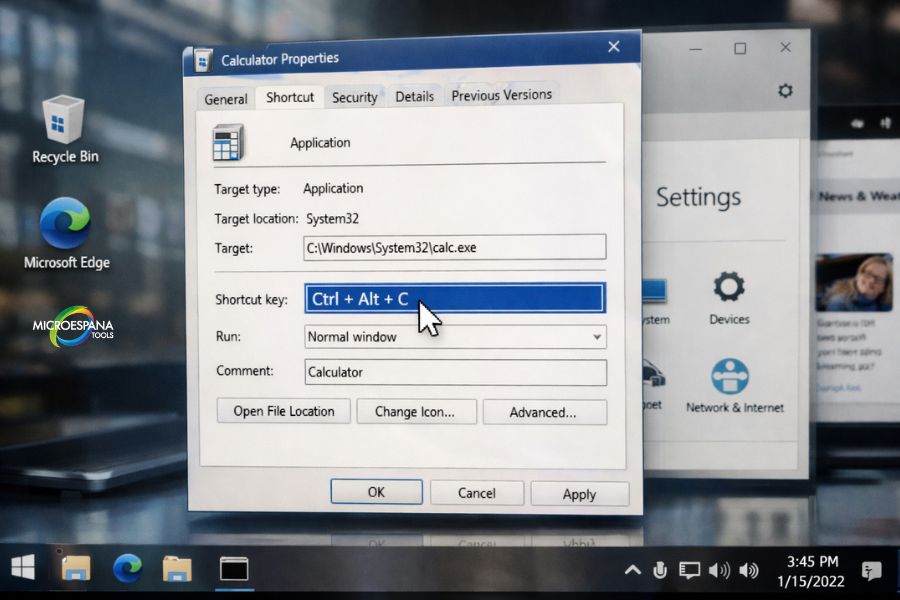
Creating custom keyboard shortcuts in Windows starts simply. You right-click an app shortcut, open properties, and assign keys using modifier keys like Ctrl key or Alt key. This basic hotkey assignment works well for launching programs quickly. It saves time every single day.
However, deeper shortcut configuration requires advanced methods. You can use system utilities or scripts for better control. For instance, assigning multi-key shortcuts for workflows improves speed. This approach enhances user interface customization and gives you a tailored computing experience.
Best Tools to Customize Keyboard Shortcuts in Windows and Mac
Choosing tools changes everything. Popular automation tools like PowerToys, SharpKeys, and AutoHotkey offer strong control over custom keyboard shortcuts in Windows. These tools simplify keystroke programming and allow flexible key function reassignment.
On macOS, tools like Karabiner-Elements and FunctionFlip support similar features. They work through macOS System Settings and advanced utilities. Cross-platform users benefit greatly. Consistent keyboard layout adjustment across systems improves workflow and reduces confusion during transitions.
How to Remap Keys and Shortcuts Using Microsoft PowerToys
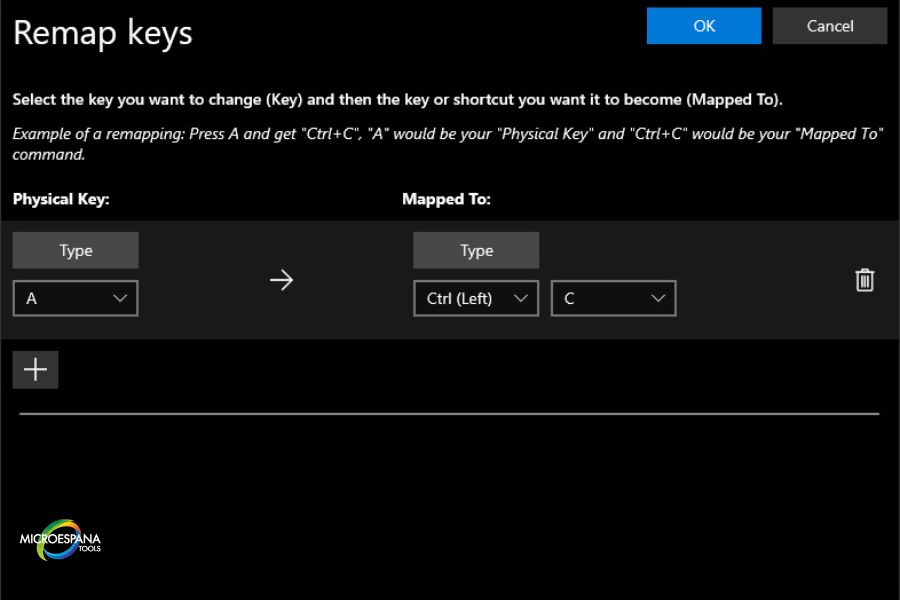
PowerToys provides a clean solution for keyboard remapping. Its keyboard manager allows you to remap a key or remap a shortcut easily. You open the tool, choose a key, and assign a new function. This makes custom keyboard shortcuts in Windows accessible for beginners.
You can also transform unused keys. For example, turning Caps Lock into a shortcut trigger boosts efficiency. This type of input device modification helps streamline repetitive actions. Over time, your system feels more responsive and aligned with your workflow.
How to Remap Individual Keys in Windows with SharpKeys
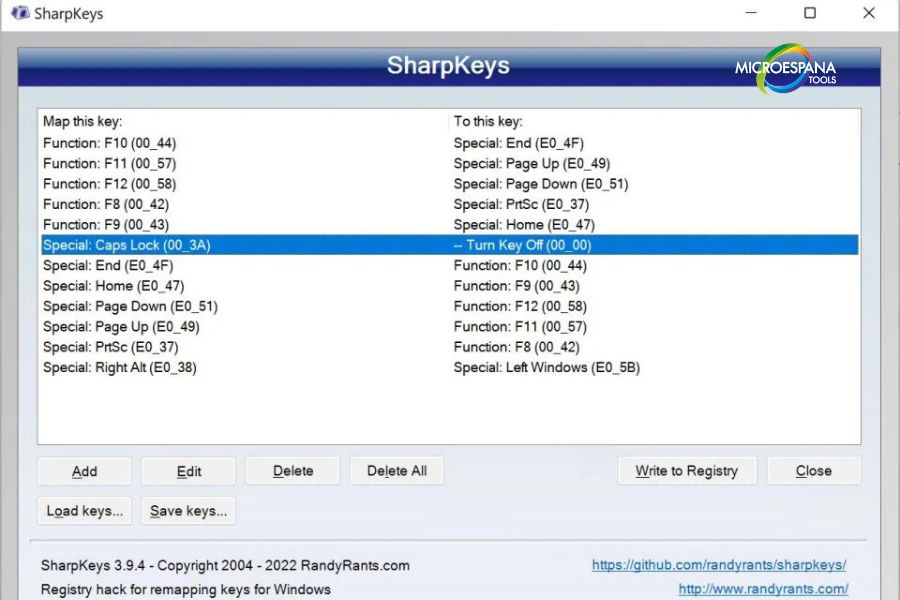
SharpKeys focuses on simple key customization. It edits the Windows registry directly. This means changes stay permanent without background processes. You can disable keys or assign new roles. It is lightweight and reliable for basic custom keyboard shortcuts in Windows.
For instance, mapping a rarely used key into a shortcut improves usability. This supports effective key function reassignment. While it lacks advanced features, it remains useful for stable setups. Many users prefer it for minimal yet effective input optimization.
Create Advanced Custom Keyboard Shortcuts Using AutoHotkey Scripts
AutoHotkey takes control to another level. It uses a scripting language to create powerful automations. You write commands inside .ahk files, and the system executes them instantly. This enables advanced custom keyboard shortcuts in Windows beyond simple assignments.
For example, one shortcut can open apps, type text, and manage windows. This combines macro creation with text expansion. Such flexibility supports complex workflows. Power users rely on it for deep keystroke programming and unmatched customization.
How to Customize Hotkeys Using Your Keyboard’s Built-in Software
Modern keyboards include dedicated gaming software. Brands like Logitech, Corsair, and Razer offer tools for hotkey assignment and macros. These tools simplify custom keyboard shortcuts in Windows through visual interfaces. You don’t need coding knowledge.
Additionally, hardware-level settings improve reliability. You can store shortcuts directly on the device. This ensures consistent input optimization across systems. Such third-party software enhances usability while keeping customization simple and efficient.
How to Reassign Keyboard Shortcuts on macOS
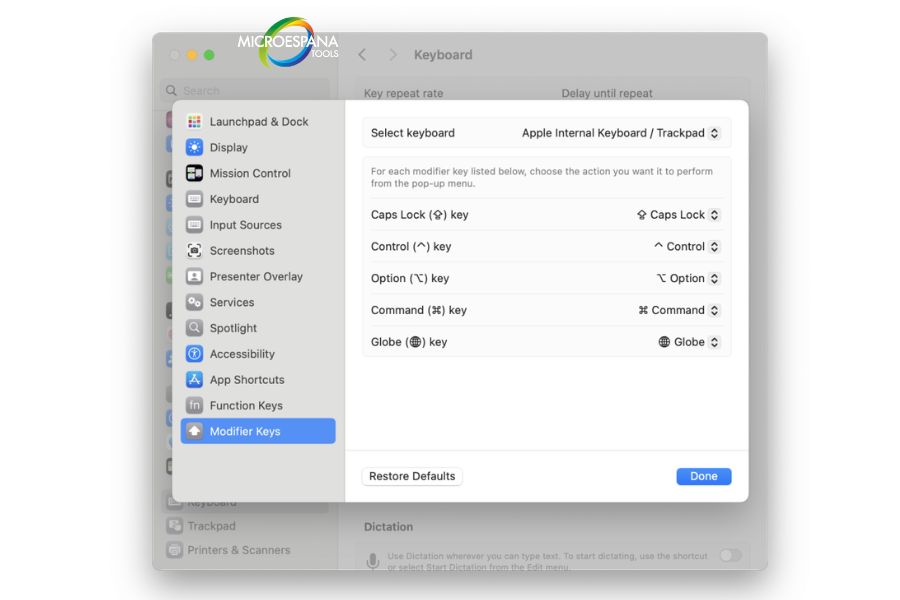
Even though the focus is Windows, macOS offers strong customization. You can modify shortcuts through macOS System Settings. This allows flexible keyboard layout adjustment across apps. It supports consistent workflows for users switching between systems.
Using tools like Karabiner-Elements, you gain deeper control. You can redefine keys such as the Command key or create new combinations. This ensures seamless custom keyboard shortcuts in Windows and macOS environments for professionals.
How to Create Keyboard Shortcuts for Programs, Files, and Folders
You can assign shortcuts to open files and folders instantly. This method enhances custom keyboard shortcuts in Windows by reducing navigation time. It works well for frequently used documents or tools. You simply assign a key combination to a shortcut file.
Imagine opening a project folder with one press. This saves effort repeatedly. Such shortcut configuration improves efficiency. Over time, small actions combine into major productivity enhancement gains across your workflow.
Practical Examples of Custom Keyboard Shortcuts for Daily Tasks
Real examples reveal the power of custom keyboard shortcuts in Windows. You can open Task Manager, switch tabs, or launch apps instantly. These actions reduce delays and improve consistency in daily work routines.
Consider a developer using multi-key shortcuts to compile code. Or a writer using text expansion for repeated phrases. These use cases show how automation tools transform simple actions into fast, seamless operations.
Limitations and Important Considerations When Creating Keyboard Shortcuts
Despite advantages, custom keyboard shortcuts in Windows have limits. Some combinations conflict with system defaults. Others may interfere with application shortcuts. Careful planning ensures smooth performance and avoids frustration.
Too many shortcuts can overwhelm memory. Balance matters. Focus on essential tasks. Also, understand how modifier keys interact. This prevents confusion and supports effective shortcut configuration without unnecessary complexity.
Best Practices for Creating Effective Keyboard Shortcuts
Effective shortcuts feel natural. Choose combinations using Ctrl key or Alt key that match actions. This improves memorability. Consistency across tasks enhances usability and reduces learning time.
Test your setup regularly. Adjust based on usage patterns. Focus on high-frequency actions. This approach ensures better input optimization and long-term productivity enhancement through refined custom keyboard shortcuts in Windows.
Additional Resources and Tools for Keyboard Shortcut Customization
Expanding knowledge improves results. Official guides and open-source programs provide valuable insights. Tools like AutoHotkey documentation and Microsoft resources explain advanced techniques clearly.
Helpful resources include https://learn.microsoft.com/windows/powertoys/keyboard-manager and https://www.autohotkey.com/docs. These platforms support deeper understanding of keystroke programming and advanced custom keyboard shortcuts in Windows strategies.
Final Thoughts on Customizing Keyboard Shortcuts for Efficiency
Efficiency grows through smart habits. When you master custom keyboard shortcuts in Windows, your workflow becomes faster and smoother. Small adjustments create lasting impact. Over time, your system feels personalized and powerful, driven by precise input optimization and thoughtful customization.
Table: Comparison of Popular Keyboard Shortcut Tools
| Tool | Key Feature | Best For | Complexity |
| PowerToys | Built-in keyboard manager | Beginners | Low |
| SharpKeys | Direct Windows registry edits | Simple remapping | Low |
| AutoHotkey | Advanced scripting language | Power users | High |
| Karabiner-Elements | macOS deep customization | Mac users | Medium |
| FunctionFlip | Function key changes | Mac basics | Low |