


How to Customize Windows Notifications for a Better Experience
Windows notifications can either help you stay informed or distract you all day. Learning how to customize Windows notifications for a better experience gives you control over what appears on your screen and when. Notifications show up through Windows settings, the Action Center, the taskbar notification icon, and the system tray. When these alerts are managed well, your computer feels calmer and easier to use. When ignored, they quickly become noise.
For users in the USA, especially those working from home or studying online, managing notifications is essential. System notifications, app notifications, and desktop notifications all compete for attention. Adjusting notification settings helps you stay focused while still receiving important updates like security alerts or calendar reminders.
How to Customize Notification Settings in Windows
Windows provides built-in notification controls that allow you to manage alerts from a single location. Inside Windows settings, you can decide how notifications behave, where they appear, and whether they make sounds. This central control makes it easier to manage daily interruptions without opening each app separately.
Custom notification settings help reduce stress and improve productivity. By understanding how alerts work in Windows, you can shape your system to match your routine. This approach forms the foundation for customizing Windows notifications to enhance the user experience.
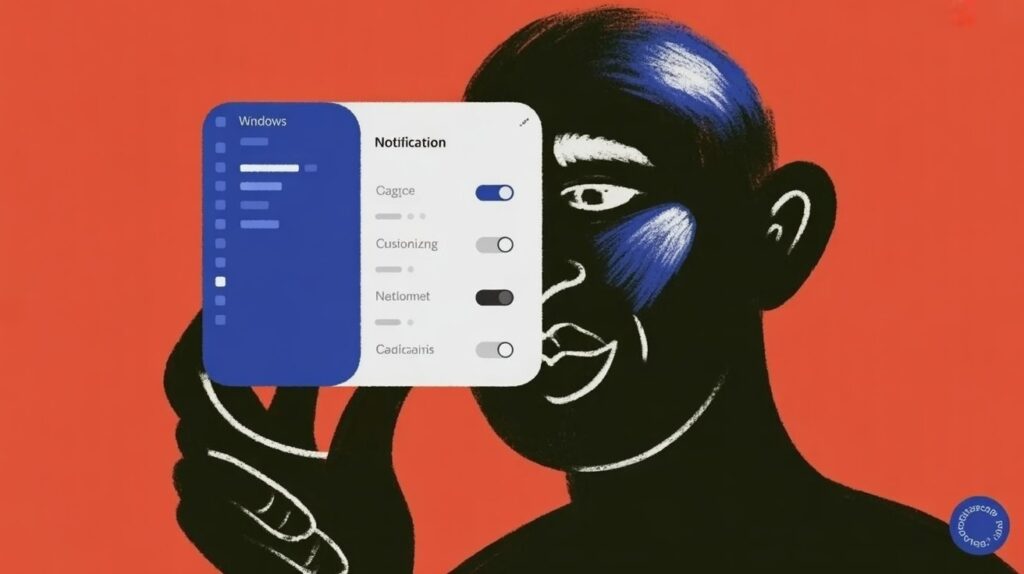
Figure 1: Windows Notification Settings Menu
How to Turn Notifications On or Off in Windows
Sometimes, silence is necessary. Windows includes a simple notification toggle that lets you turn off notifications instantly. This option is helpful during meetings, study sessions, or personal time. Many users rely on it to turn off all notifications in Windows 10 without changing individual app settings.
Turning notifications back on restores normal behavior. This flexibility allows quick control without losing your custom setup. It is one of the easiest ways to reduce distractions while keeping your system organized.
How to Turn Do Not Disturb On or Off
Do Not Disturb helps control interruptions without blocking everything. When enabled, alerts stay hidden but are saved in the Action Center for later review. This feature supports better focus while still keeping notifications accessible.
Many people use Do Not Disturb during presentations or screen sharing. It allows important system notifications to remain available without interrupting your workflow. This balance improves notification priority management.
How to Customize Do Not Disturb Automatic Rules
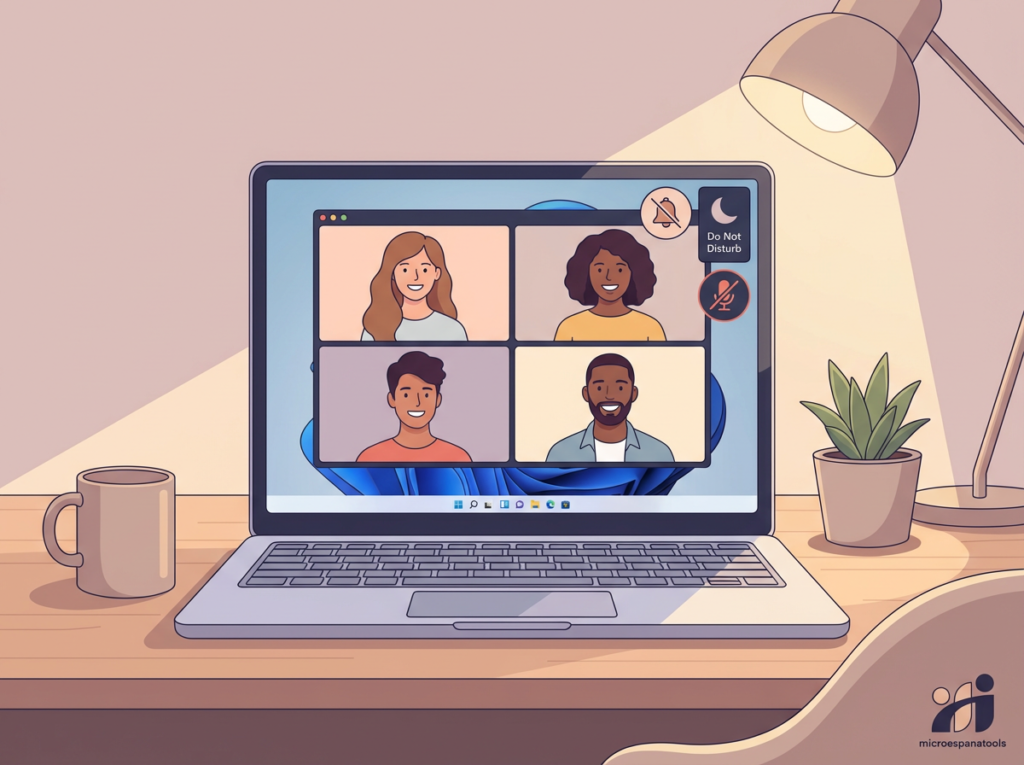
Figure 2: Automatic Rules for Focus Mode
Automatic rules make notification handling smarter. Windows can enable Do Not Disturb during specific times, while gaming, or when sharing your screen. These rules reduce the need to manually manage alerts throughout the day.
Using automatic rules helps align notifications with your schedule. It ensures fewer interruptions while still allowing important messages based on Windows notification priority levels.
How to Customize Priority Notifications in Windows 11
Windows 11 allows you to define which alerts matter most. Priority notifications can bypass silence settings so critical alerts always reach you. This is useful for calendar reminders, alarms, or trusted contacts.
By setting notification priority, you gain better control over urgency. This feature supports a smoother workflow and helps avoid missing important updates.
How to Customize Notifications for Each App
Every app behaves differently. Windows allows you to disable notifications for specific apps while keeping others active. This is especially useful for social media or promotional apps that send frequent alerts.
App-level control improves Windows 10 notification management. It reduces noise without blocking useful information from essential tools.

Figure 3: Managing Notifications per App
Customize Notifications from App Settings
Some applications manage alerts inside their own settings. Adjusting notifications within the app prevents duplicate alerts and improves consistency. This is common with messaging apps and browsers.
Combining system-level and app-level controls helps stop notifications from apps and senders that are not important. This layered approach creates a better balance.
How to Change Notification Sound in Windows
Notification sounds can be customized through the Control Panel sound settings. Changing sounds helps you recognize alerts without looking at the screen. Many users prefer softer tones for work environments.
Others choose to mute notification sounds entirely during focus hours. Sound customization adds comfort and improves daily computer use.
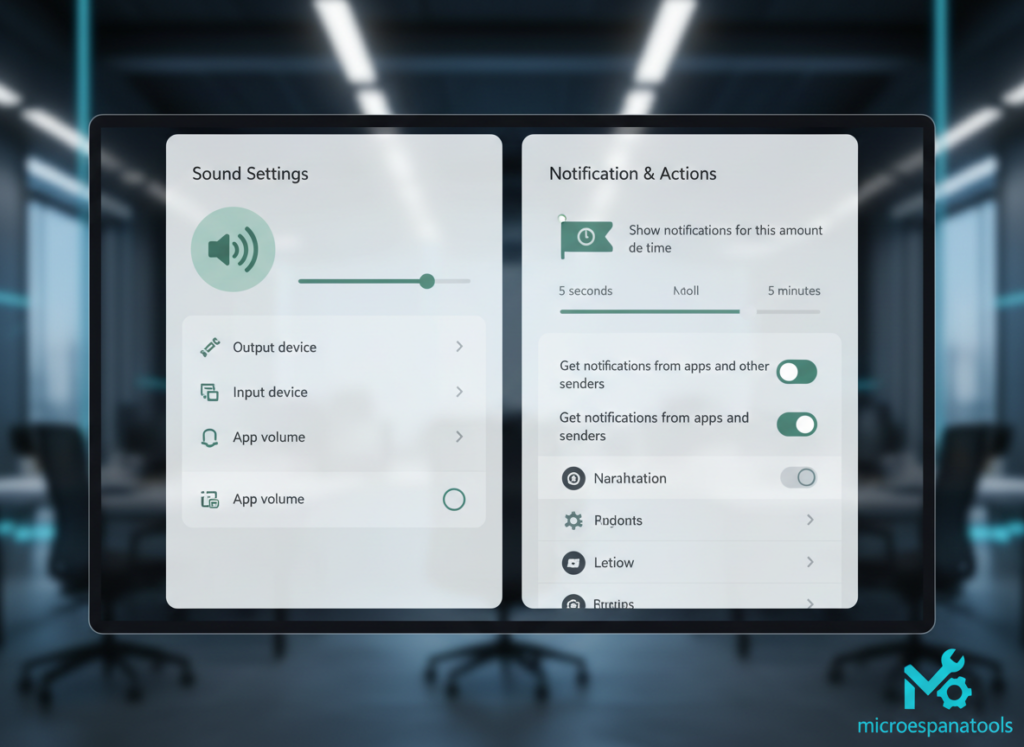
Figure 4: Sound and Duration Settings
How to Change Banner Notification Duration
Banner notifications appear briefly on the screen. Windows allow you to adjust how long they stay visible. Short banners reduce distraction, while longer ones improve readability.
Adjusting banner timing improves notification visibility settings. It helps match alerts to your pace and work style.
How to Disable Lock Screen Notifications
Lock screen notifications may reveal personal information. Disabling them helps protect privacy, especially on shared devices. Many users look for ways to remove notifications from lock screen displays.
This setting improves notification privacy and keeps sensitive data hidden. It is an important step for professional and personal security.
Customize Your Windows 10 Notification Settings
Windows 10 notifications remain widely used despite newer versions. Features introduced during the Anniversary Update still shape how alerts work today. Users can manage notifications in Windows 10 with flexible controls.
Combining global settings, app notifications, and sound options creates a smoother experience. These tools help maintain focus without missing important updates.
Windows Notification Settings Explained for Better Focus
Windows also supports advanced features like mirroring Android notifications on PC and Cortana notifications. While convenient, these features increase alert volume. Managing them carefully prevents overload.
By learning how to hide the Action Center icon, get notifications from these senders, and keep notifications private on the lock screen, users regain control. Understanding how to customize Windows notifications for a better experience transforms alerts into helpful tools instead of distractions.