

Your Browser Cache & Search History store important information about your online activity, including visited websites, saved login data, and temporary files that help pages load faster. While features like clear browsing data, cookies and site data, and cached images and files improve speed and convenience, they can also raise privacy concerns if left unmanaged. Over time, stored data may slow down performance or expose sensitive details to anyone with device access. Learning how to manage and delete this information is essential for better security, smoother browsing, and stronger digital privacy protection across both desktop and mobile devices. Regular cleanup keeps your browsing experience safe and efficient.

Online Tools & How-To
How to Clear Browser Cache & Search History on Chrome, Safari, Edge & Firefox
Microespana Admin
February 21, 2026
Modern browsers store cookies and site data, login tokens, and temporary files. Over time, this storage grows heavy. If you want to remove browsing history permanently or simply delete search history, you must understand the difference between cache, cookies, and saved credentials. Cache stores website elements. Cookies remember sessions. History records visited pages. Proper browser data management ensures your device runs efficiently. It also limits unnecessary browser data synchronization across devices.
How to Clear Browser Cache in Chrome, Edge, Firefox, Safari & Opera
Every major browser allows Internet cache removal through its privacy and security settings. When you choose to clear your cache on any browser, you typically press a shortcut like Ctrl + Shift + Delete on Windows or Command + Shift + Delete on Mac. This action opens the clear browsing data panel. There you can select time range and choose to delete cookies and cache files, delete autofill data, or clear saved passwords. Many Chromium-based browsers share similar menus because they use the same engine.
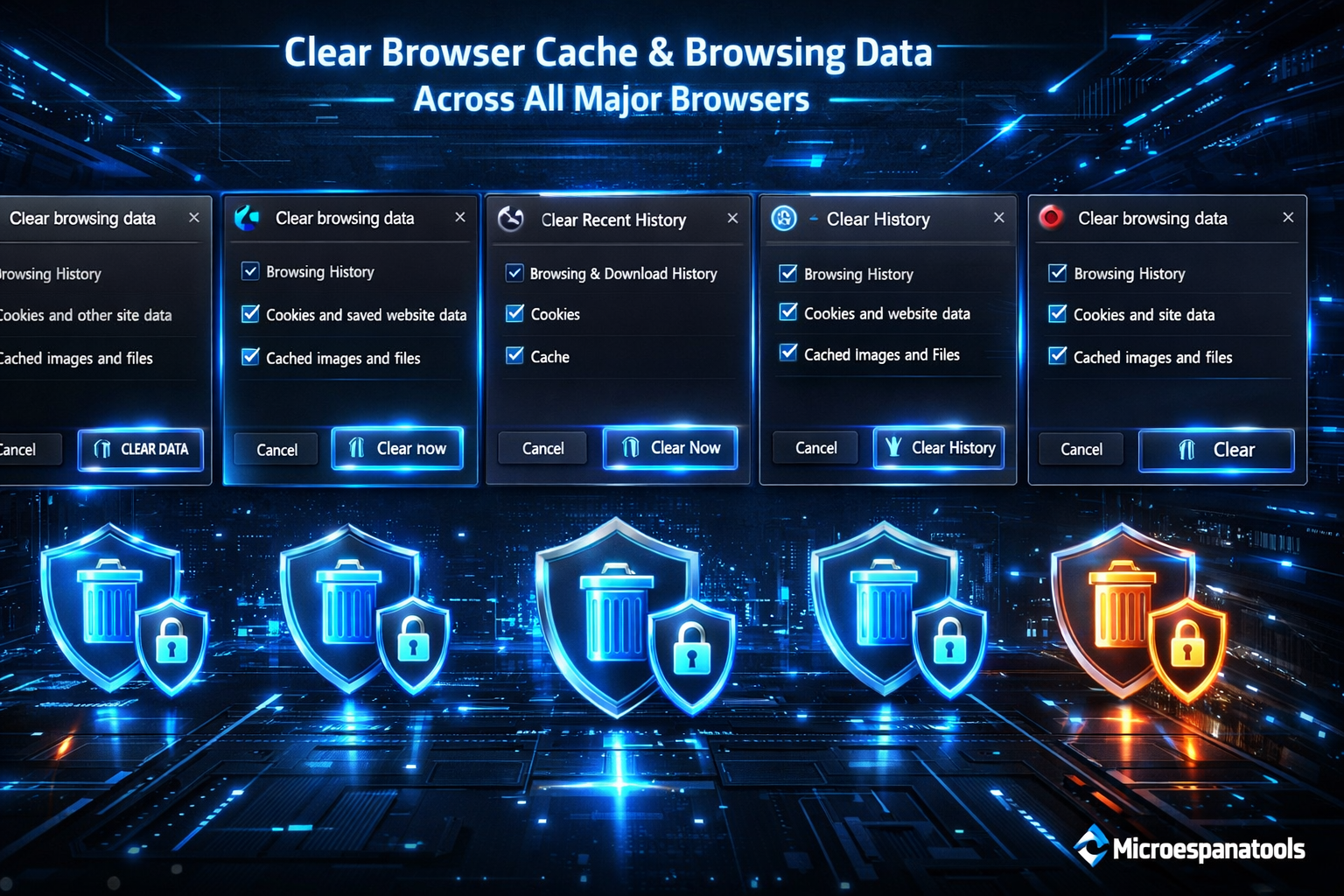
The table below shows common paths to complete browser history deletion and clear website data:
| Browser | Menu Path | Key Option Name |
| Chrome | Settings > Privacy | Clear browsing data |
| Edge | Settings > Privacy | Clear browsing data |
| Firefox | Settings > Privacy & Security | Clear Data |
| Safari | Preferences > Privacy | Manage Website Data |
| Opera | Settings > Privacy | Clear browsing data |
Understanding these paths makes How to Clear Browser Cache & Search History on Chrome, Safari, Edge & Firefox simple and repeatable. Regular maintenance strengthens web privacy protection methods and keeps performance stable.
Desktop Browsers: Removing History, Cache, and Cookies
Desktop computers often store more data than phones. When you clear history on the desktop, you reduce saved trackers and improve load speed. Many users forget that browsers also store download records. You can erase download history to remove file traces. In shared households, this step improves desktop and mobile browser privacy.
When using privacy settings in browsers, always review advanced options. For example, you can prevent browsers from saving history by enabling private browsing mode or incognito mode. These modes don’t store session data after closing. However, they do not hide activity from internet providers. For stronger control, combine manual cleaning with clear browsing data automatically features found in modern browsers.
Google Chrome (Desktop)
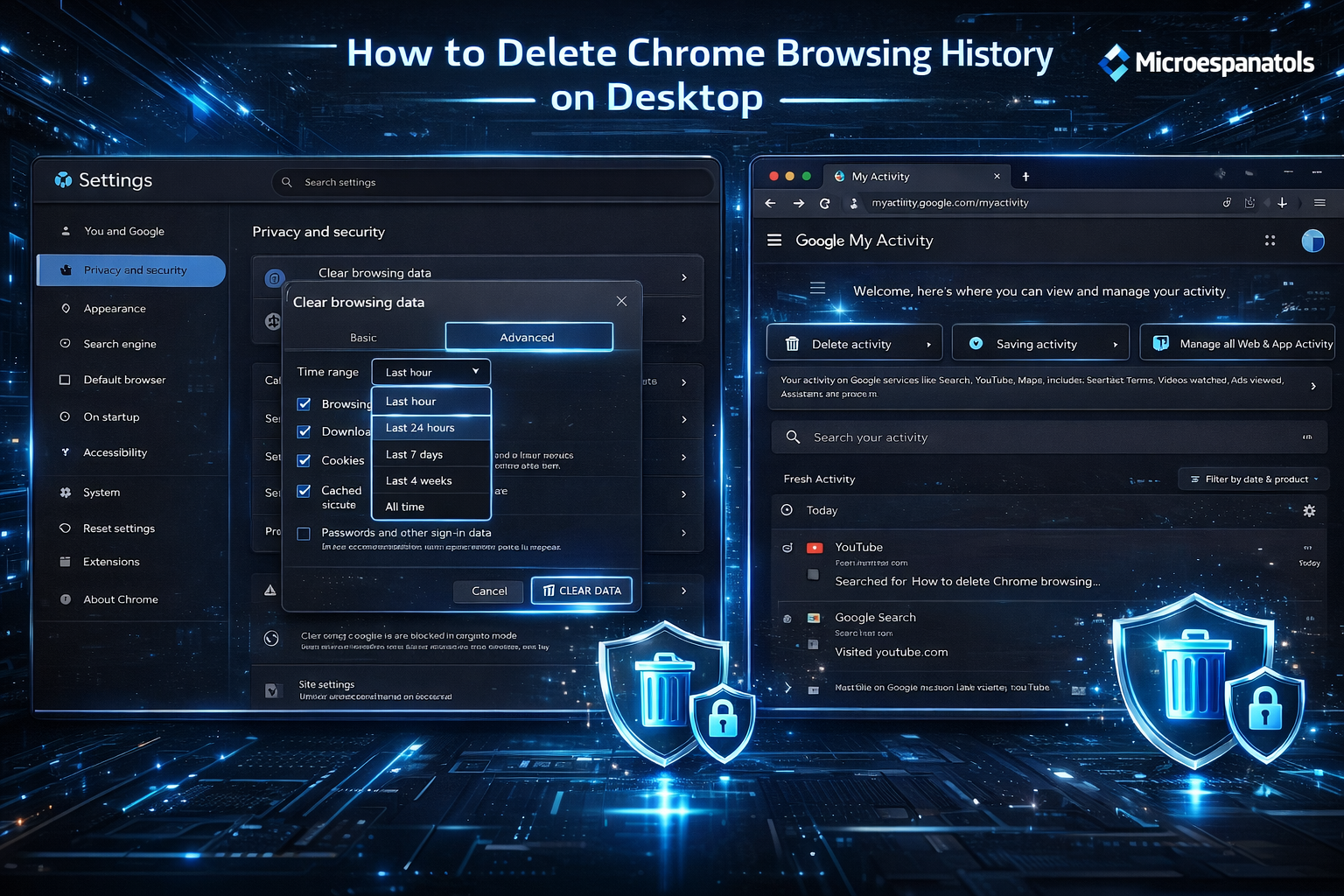
Google Chrome dominates the U.S. market. To delete Chrome browsing history, open Settings and select Privacy. Choose clear browsing data. Then select the time range. You can also delete synced data tied to your Google account. Visit https://myactivity.google.com to manage Google My Activity and control web and app activity. This allows deeper browser data management.
Chrome also allows auto-delete activity for history older than three, eighteen, or thirty-six months. This helps to protect digital privacy without manual effort. Removing cached images and files improves speed. Clearing cookies and site data fixes login issues. When you regularly practice How to Clear Browser Cache & Search History on Chrome, Safari, Edge & Firefox, Chrome becomes faster and safer.
Mozilla Firefox (Desktop)
Firefox emphasizes transparency. To clear Firefox browsing data, open Settings and find Privacy & Security. Click Clear Data. Select delete internet history and delete cookies and cache files. Firefox also supports automatic deletion when closing the browser. That setting strengthens online privacy protection.
Firefox includes Enhanced Tracking Protection. This blocks many tracking scripts automatically. You can also manage website data and review stored permissions. If you want stronger digital privacy, enable strict tracking mode. Regular internet cache removal reduces corrupted files. Knowing How to Clear Browser Cache & Search History on Chrome, Safari, Edge & Firefox ensures Firefox runs smoothly.
Microsoft Edge (Desktop)
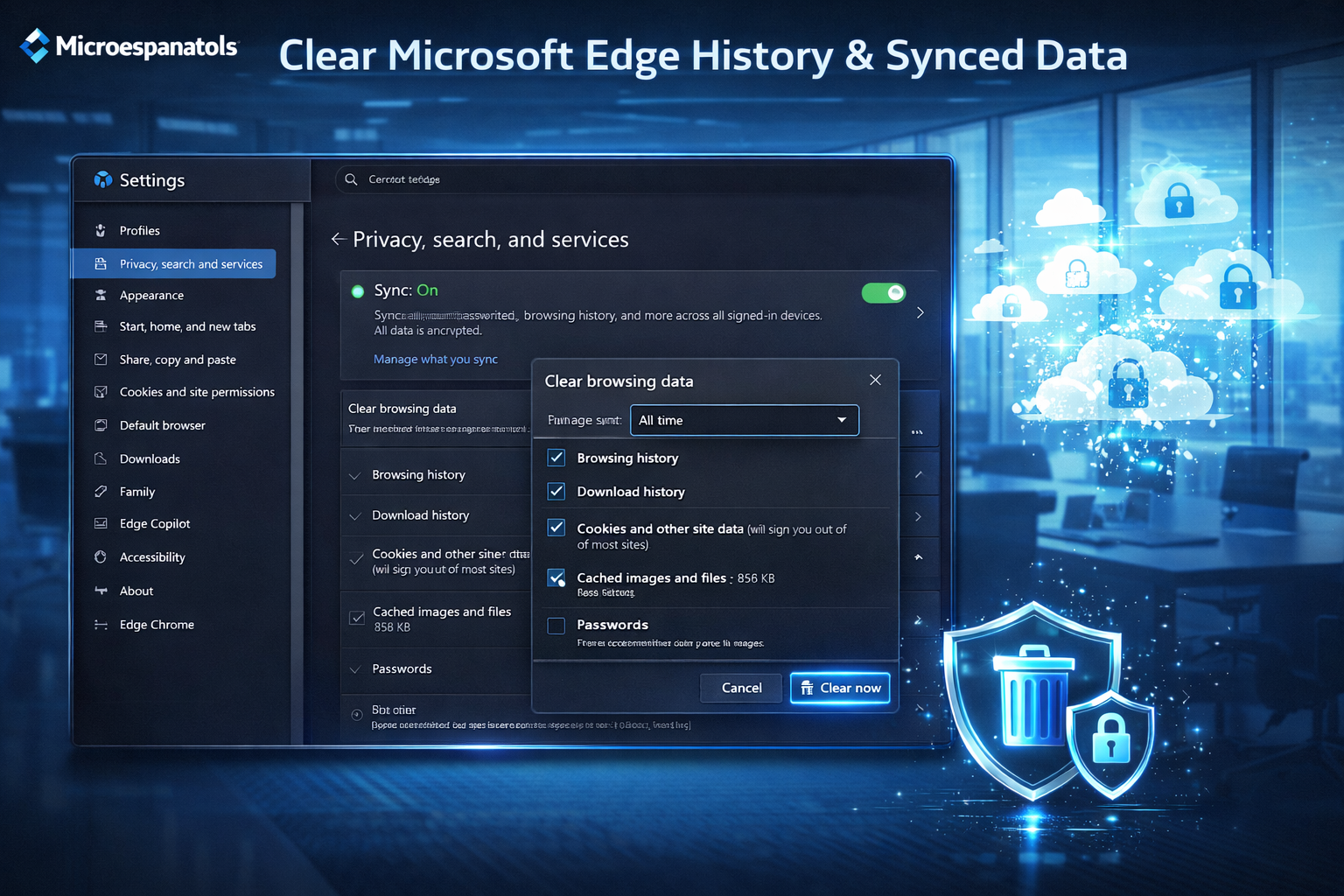
Microsoft Edge uses a Chromium engine. To clear Microsoft Edge history, open Settings and select Privacy. Choose clear browsing data. If you use account sync, also delete synced browser data from your Microsoft account dashboard. This step prevents unwanted browser data synchronization across devices.
Edge also includes Tracking Prevention. Adjust it under browser privacy settings. You may clear saved passwords or delete autofill data separately. Businesses often require regular cleaning for compliance. Following browser security best practices protects both personal and corporate devices.
Safari (Mac)
Safari integrates deeply with macOS. To clear Safari history on macOS, open Safari Preferences and click Privacy. Use Manage Website Data to clear website data and remove stored trackers. You may also open the Develop menu for manual internet cache removal.
Safari supports Intelligent Tracking Prevention. This limits cross-site tracking automatically. If you use iCloud sync, remember to delete synced data across devices. Regular browser history deletion improves performance and strengthens secure browsing habits.
Opera (Desktop)
Opera provides built-in privacy tools. To clear Opera browser history, open Settings and navigate to Privacy. Choose clear browsing data and select files to remove. Opera also includes a built-in VPN and ad blocker. Clearing cookies and site data ensures fresh browsing sessions.
Opera supports private browsing mode for temporary sessions. You can also schedule clear browsing data automatically on exit. This habit improves desktop and mobile browser privacy and reduces exposure to online activity tracking.
Mobile Browsers: Cleaning Web History and Cache
Phones collect data quickly. Apps connect to browsers and increase storage usage. When you clear history on mobile, you reduce saved trackers and free space. Many Americans rely on smartphones for banking and shopping. Therefore web privacy protection methods become even more critical.
Mobile browsers allow clear mobile browser history and selective deletion of cookies and site data. You can also prevent browsers from saving history using private tabs. Understanding How to Clear Browser Cache & Search History on Chrome, Safari, Edge & Firefox on mobile ensures consistent protection across devices.
Safari (iOS)
To delete history on iPhone Safari, open Settings and tap Safari. Select Clear History and Website Data. This removes browser history deletion records and stored cache. It also clears cookies.
Safari on iOS syncs with iCloud. If enabled, the action removes data from connected Apple devices. Regular cleaning enhances online privacy protection and supports strong digital privacy practices.
Chrome (Android)
To clear Chrome history on Android, open Chrome and tap the three dots. Select History. Tap clear browsing data. Choose a time range. Remove cached images and files and delete autofill data if needed.
Chrome Android also syncs with Google accounts. Use manage Google My Activity online to adjust web and app activity settings. Turning on auto-delete activity strengthens account-wide control.
Edge (Mobile)
Open Edge mobile and tap Settings. Select Privacy. Choose clear browsing data to complete clear Microsoft Edge history on your phone. You may also disable sync to stop browser data synchronization.
Edge mobile includes Tracking Prevention similar to desktop. Regular cleaning supports secure browsing and reduces unnecessary stored data.
Firefox (Mobile)
Firefox mobile allows quick clear mobile browser history through Settings. Tap Delete browsing data. Select options like delete cookies and cache files or erase download history.
Firefox also allows automatic deletion on exit. This feature strengthens online privacy protection. Combined with Enhanced Tracking Protection, it offers strong defense against online activity tracking.
Final Thoughts on Browser Data and Privacy
Knowing How to Clear Browser Cache & Search History on Chrome, Safari, Edge & Firefox gives you control over your digital footprint. When you consistently clear browsing data, manage browser privacy settings, and follow browser security best practices, you create safer habits. Small steps lead to strong protection. Clean browsers load faster. They feel lighter. And most importantly, they protect what matters most—your personal data.