


How to Enable Two-Factor Authentication on Your Microsoft Account (2026 Complete Guide)
Securing your online identity has never been more important, especially as cyber threats continue to grow. Enabling Two-Factor Authentication on your Microsoft account adds an extra layer of defense beyond just a password. This security method requires users to verify their identity using a trusted device or authentication app before signing in. Even if your login details are stolen, unauthorized access is blocked without the verification code. By activating Microsoft account security, you significantly reduce the risk of hacking, phishing, and data breaches. Using the Microsoft Authenticator app, along with proper login verification, helps ensure safe access across devices while strengthening overall account protection through reliable multi-factor authentication.
What Is Two-Factor Authentication (2FA)?
Two-factor authentication (2FA) adds an extra layer of defense to your login process. Instead of entering only a password, Microsoft asks for a second confirmation step before granting access.
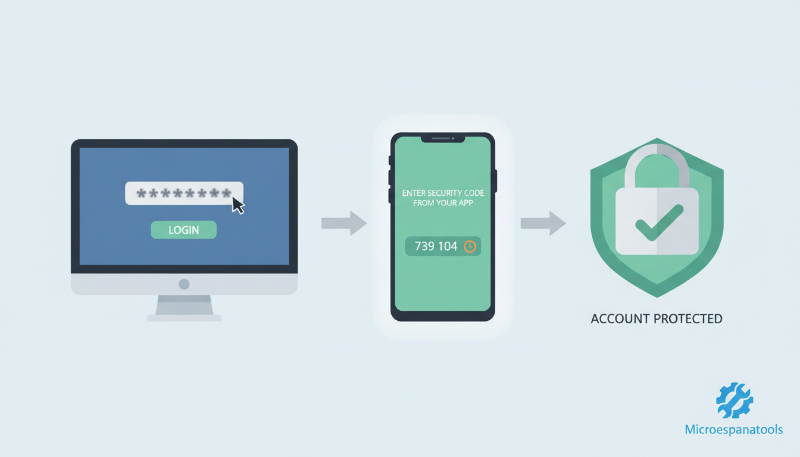
This second step could be a security code, a phone approval, or an app notification. Even if criminals steal your password, they can’t access your Microsoft account without this second verification. You can learn more from Microsoft’s official explanation here:
https://support.microsoft.com/account-billing/microsoft-account-security-info-faq-9f8d7f17-03f6-4a2f-9e2b-ecb7f94f9bfb
Why Two-Factor Authentication Is Important for Microsoft Accounts
Modern cybercriminals use advanced hacking methods like credential stuffing and malware-based attacks. These techniques bypass weak passwords easily, even when users think they’re secure.
Two-step verification blocks these threats by stopping suspicious login attempts instantly. Without your approval, attackers can’t pass Microsoft’s identity verification checks. This dramatically improves Microsoft account security for email, OneDrive, Xbox, and Microsoft 365 users.
How to Set Up Two-Factor Authentication on Your Microsoft Account
The two-factor authentication setup process takes only a few minutes. You need access to your account email and a mobile device that can receive codes or app notifications.
Microsoft manages all protection tools inside its official security center. You can begin setup using Microsoft’s step-by-step guide here:
https://support.microsoft.com/account-billing/turn-on-two-step-verification-42fd7c95-92fe-4a5b-9e22-6c0f7f58a1c2
This area allows full control over your Microsoft account verification system.
Step-by-Step Guide to Enable Microsoft Two-Step Verification
Access Microsoft Security Dashboard
Visit the Microsoft security portal at:
https://account.microsoft.com/security
After signing in, open the security tab and locate advanced security options Microsoft provides for account protection.
Turn On Two-Step Verification
Select the option to enable authentication. Microsoft may ask for identity confirmation before activating protection.
Once enabled, your account will require verification during every new login attempt.

Choose Your Verification Method
Microsoft allows multiple verification choices. You may select SMS messages, phone calls, or an authentication app. App-based verification offers the strongest protection.
How to Log In Using Microsoft Two-Step Verification
After activation, the login process changes slightly. You enter your password first. Then Microsoft sends an authentication code login request to your registered device.
If approved, access is granted. Devices marked as a trusted device won’t request frequent verification, keeping daily sign-ins fast while maintaining a secure Microsoft login environment.
Using the Microsoft Authenticator App for 2FA
The Microsoft Authenticator app is the safest verification option in 2026. It replaces SMS codes with encrypted push approvals.
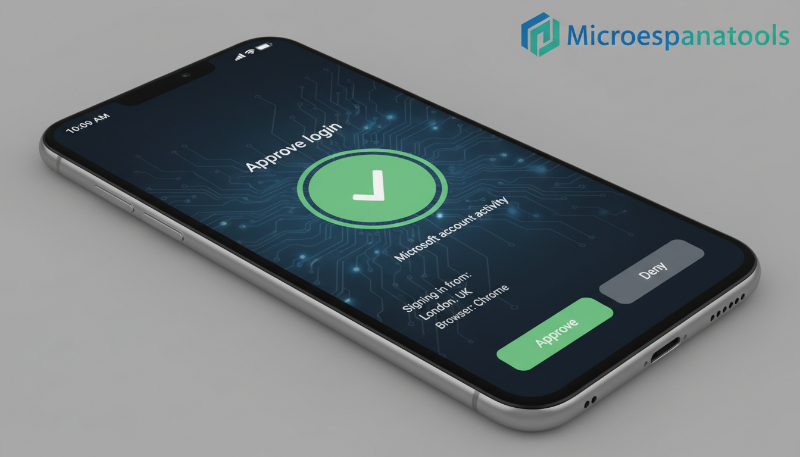
This method resists phishing and works even without cell service, making it ideal for both personal and business accounts.
Official app information is available here:
https://www.microsoft.com/security/mobile-authenticator-app
Installing Microsoft Authenticator
Download the app from the official stores:
Apple devices:
https://apps.apple.com/us/app/microsoft-authenticator/id983156458
Android devices:
https://play.google.com/store/apps/details?id=com.azure.authenticator
The app is free and supports most modern smartphones.
Connecting the App to Your Account
Open the app and scan the QR code shown in your Microsoft security dashboard. This links the app instantly and enables secure sign-in approval notifications.
Benefits of App-Based Login
The app supports offline codes, biometric access, and fast approvals. This form of app-based authentication is safer than SMS and strongly recommended by Microsoft.
How to Generate App Passwords for Microsoft Account
Some older programs don’t support modern verification systems. Microsoft solves this with app passwords.
These passwords bypass the second step only for specific apps. They can be created and revoked anytime within your additional security settings.
| Feature | Details |
| Password length | 16 characters |
| Purpose | Legacy applications |
| Revocable | Yes |
| Recommended use | Limited |
Common Problems While Setting Up Microsoft 2FA and Their Fixes
Users may experience delayed codes, outdated phone numbers, or app sync errors. Updating your security info resolves most problems.
If a device is lost, Microsoft activates a security reset period before changes apply. This prevents attackers from bypassing the account recovery process.
Official recovery guide:
https://support.microsoft.com/account-billing/recover-your-microsoft-account-8ec1b8e7-1b7c-4c8b-9a2f-4f8a8f38b93a
How to Turn Off or Change Two-Step Verification Settings
You can modify verification methods anytime from the Microsoft security dashboard.
relocation? Wait.
To change or disable settings, Microsoft requires full identity confirmation to prevent unauthorized changes.
Official instructions are available here:https://support.microsoft.com/account-billing/change-or-turn-off-two-step-verification-6b4cdd20-3d7a-4d1a-9f94-78c1e0a5d2de
Microsoft Account Security Best Practices
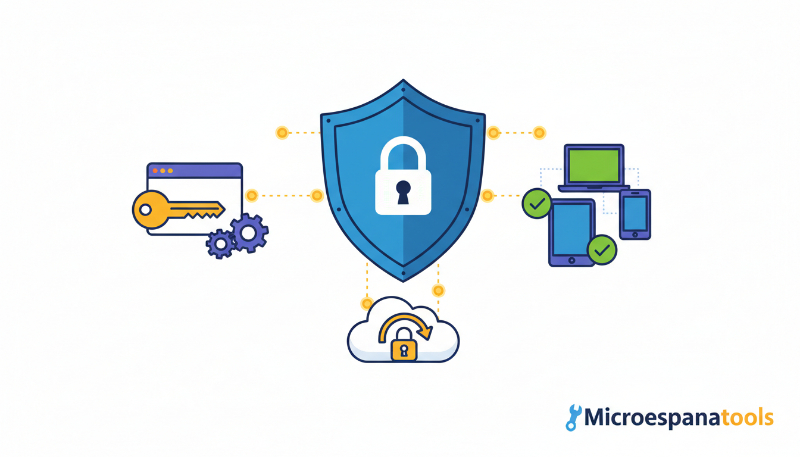
Strong security works best when multiple defenses are combined.
| Security Practice | Benefit |
| Unique passwords | Stops reuse attacks |
| Authenticator login | Blocks phishing |
| Sign-in alerts | Detects intrusions |
| Updated recovery info | Prevents lockouts |
More safety guidance can be found at:
https://support.microsoft.com/security
These steps strengthen long-term Microsoft account safety.
Tips to Keep Your Microsoft Account Secure in 2026
Microsoft now supports passwordless sign-ins using biometrics and passkeys. This removes passwords entirely from the login process.
Avoid clicking unknown links. Review activity history often. Always reject unexpected sign-in approval prompts. These habits help protect online accounts from future threats.
Frequently Asked Questions About Microsoft Two-Factor Authentication
Is two-step verification free?
Yes. Microsoft provides 2FA at no cost.
Can 2FA work without a phone number?
Yes. The Microsoft Authenticator app works without SMS.
What if my phone is lost?
Use backup codes or complete the recovery process.
Is app-based security better than SMS?
Yes. Apps provide encrypted protection and phishing resistance.
Final Thoughts
Understanding How to Enable Two-Factor Authentication on Your Microsoft Account is one of the most effective steps you can take to protect your digital identity in 2026.
Passwords alone can’t stop modern threats. With Microsoft’s built-in security tools, you gain powerful protection that works quietly in the background—keeping your files, emails, and personal data safe every day.