


How to Share Files Seamlessly Between Windows and Android
In today’s connected world, being able to share files seamlessly between Windows and Android devices is essential for both personal and professional use. Whether it’s photos, videos, documents, or audio files, transferring content quickly and securely improves productivity and convenience.
Tools like Quick Share and Nearby Share allow users to move files across platforms without the need for cables or external storage. By enabling Bluetooth and Wi-Fi, these features ensure that devices can connect effortlessly, making cross-platform sharing smooth and reliable. Learning how to set up and use these tools ensures that your files are always within reach.
How to Share Android to Android
Sharing between Android devices is fast and convenient with Nearby Share or Quick Share. Android users can select Share with Galaxy devices or Share with non-Galaxy devices depending on the phone. The Quick settings menu allows you to select Quick Share, enable Bluetooth and Location services, and manage device visibility options. Once setup is complete, you can receive the file instantly on the target device. Large files like videos can also be sent using Wi-Fi only for speed and stability.
Some devices may show Who can share with you settings. Adjusting this to Receive from everyone or Receive from contacts can prevent failed transfers. Using Android sharing settings, you can also share photos and videos directly from the gallery. If issues arise, toggling Airplane mode on and off or ensuring devices closer together often resolves connectivity problems.

Figure 1: Quick Share Interface
Send and Receive Files on Android
Files can be sent and received using Google file transfer, Samsung Quick Share, and other Android apps. Opening Quick Share for Windows allows the device to pair Android device with Windows PC quickly. You can share with contacts or share with everyone, depending on your preference. After sending, a file sharing notification confirms that the transfer completed successfully.
Many Android users rely on Google Photos or cloud services for Android to Windows transfer. By linking a Google account, you can instantly open the associated app and download files. This method is helpful for backing up photos and documents. Additionally, the Quick settings menu provides shortcuts to enable Wi-Fi and Bluetooth for faster transfers.
How to Share from Android to Windows
To send files to Windows PC, first ensure the devices are connected. Using BetterTogetherSetup.exe, you can pair Android devices with Windows PC. Alternatively, Quick Share for Windows allows seamless file transfer. Files can be drag and drop to share directly from the Android device, making it fast and easy.
For large files, Wi-Fi file transfer is ideal. Ensure Bluetooth icon is on and devices closer together to improve speed. You can also use apps like Microsoft OneDrive for Google account pairing. These apps allow you to open files on Windows immediately after upload.

Figure 2: Cross-Platform File Transfer
How to Share from Windows to Android
Windows users can also pair Android devices with Windows PC using BetterTogetherSetup.exe. Once connected, you can drag and drop to share files from Windows to Android. Using Quick Share for Windows makes the process smoother, and file transfer troubleshooting is minimal.
If Wi-Fi is available, share files using Wi-Fi for speed. You can also send files via Bluetooth if both devices support it. Adjust Who can share with you to Receive from your devices to ensure files arrive without errors.
Send Files via Remote Desktop (DeskIn or Similar Apps)
Apps like DeskIn and AnyDesk allow send files wirelessly between Android and Windows. These apps include file transfer notifications and let you open the associated app immediately. Remote desktop tools are ideal for business users needing Android connectivity features.
Send Files via Bluetooth
Bluetooth file sharing is simple and works on all devices. Ensure Bluetooth icon is on and devices are close. After pairing, you can share files using Bluetooth and confirm file transfer notifications. Large files may transfer slowly, so consider enabling Use Wi-Fi only on compatible devices.
Send Files via Email
Email remains a reliable method to send files to Windows PC. Gmail, Outlook, and Yahoo Mail allow attachments, though large files may require compression. Cloud attachments like Google Photos or Microsoft OneDrive can be linked to emails for Android to Windows transfer.
Send Files via Communication Apps (WhatsApp, Telegram, Messenger)
Apps like WhatsApp, Telegram, and Messenger allow fast Android file sharing. Users can share photos and videos, documents, and links. Keep in mind size limits; using Telegram or Google file transfer apps is better for large documents.
Send Files via Google Drive or Cloud Storage
Google Drive, OneDrive, and Dropbox make share files between devices simple. Upload files from Android and access them instantly on Windows. Using a Google account, users can receive files on Android and open the associated app quickly.
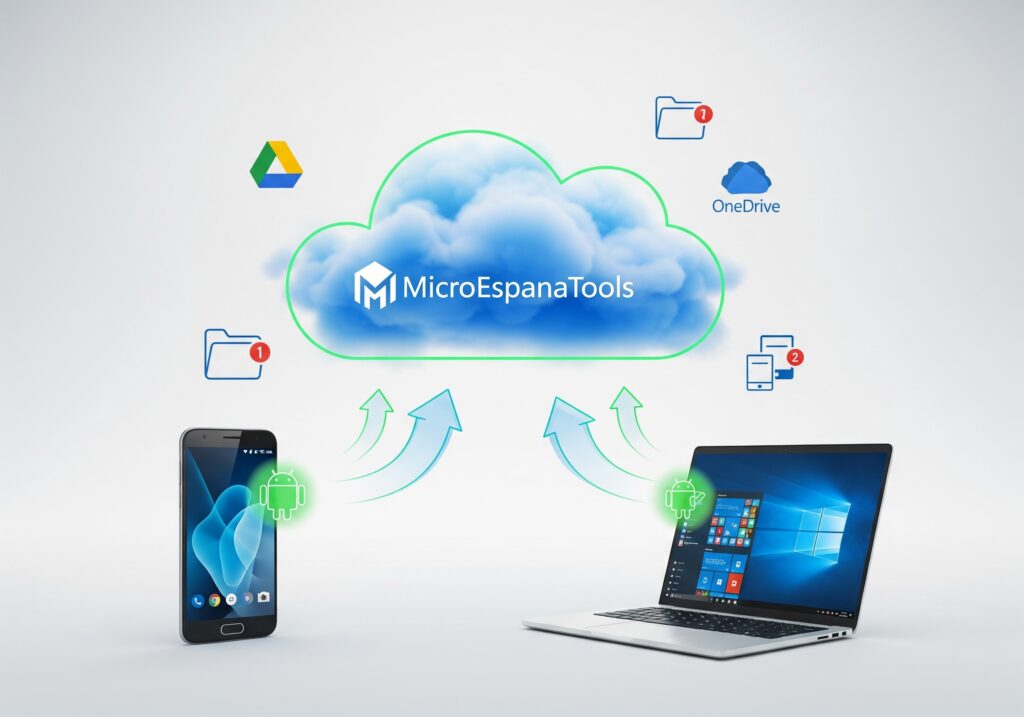
Figure 3: Cloud Storage Synchronization
Best All-in-One File Transfer Solution – AirDroid Personal
AirDroid Personal is a complete solution to send files to Windows PC. It supports drag and drop to share, file transfer notifications, and Wi-Fi file transfer. You can pair an Android device with a Windows PC easily using AirDroid.
Fast Transfer Methods – Wi-Fi Direct, FTP, SMB
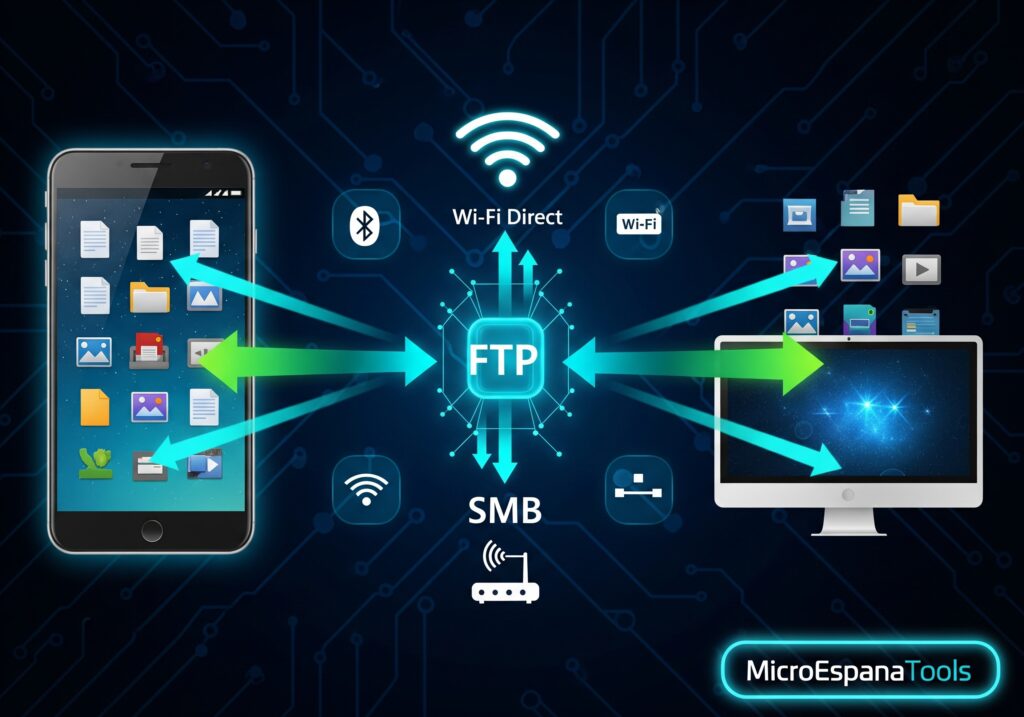
Figure 4: Wi-Fi Direct and FTP Options
Wi-Fi Direct, FTP, and SMB are faster than Bluetooth. With Wi-Fi file transfer, files move quickly and securely. Devices closer together ensure higher speed. FTP allows organized folder transfers, and SMB works well for shared Windows networks.
FAQ
What is the fastest way to transfer files between Windows and Android?
Wi-Fi Direct and Quick Share are the fastest methods.
Can I share large files without internet?
Yes, using Nearby Share, Wi-Fi Direct, or AirDroid Personal.
Are these methods safe for sensitive data?
Yes, always check device visibility options and use secure apps with encryption.