

ShareX vs. Snipping Tool: Which Screenshot Tool Is Best?
In the world of screen capture, two names stand out—ShareX and Snipping Tool. Both are popular screenshot tools for Windows users, but they cater to very different needs. The Windows Snipping Tool is simple and built-in, ideal for quick and easy captures.
In contrast, ShareX is an open-source software packed with powerful customization, automation, and recording features. Whether you want basic snapshots or advanced screen recording with editing options, understanding ShareX vs Snipping Tool helps you choose the right fit. This comparison explores their features, performance, and usability so you can decide which tool truly enhances your Windows screenshot workflow.
Why Screenshot Tools Matter in Daily Work
Screenshots are more than just images; they’re part of communication. From sending visual instructions to documenting software issues, good screen capture software saves time and prevents confusion. Modern workflows depend on clarity, and visuals deliver it quickly. For professionals who rely on tutorials, bug reports, or visual storytelling, tools like ShareX and the Windows Snipping Tool are essential.
Quick Overview — ShareX vs. Snipping Tool
Before diving into details, here’s a quick comparison of their most important features:
| Feature | ShareX | Windows Snipping Tool |
|---|---|---|
| Price | Free (open-source) | Free (built-in) |
| Screen recording | Yes (Audio, GIF, Video) | No |
| Editing tools | Advanced annotation | Basic markup |
| Sharing options | 80+ destinations | Limited |
| Automation | Supported | Not available |
| OCR | Yes | No |
ShareX is Extremely Customizable
ShareX is known for its extreme customization. Users can create personalized capture profiles, change default image formats, or even automate uploads to multiple services. You can design your own after-capture tasks, such as auto-saving to a folder, applying image effects, or sending screenshots to a custom server.
Advanced Screen Capture Modes
One of the most powerful ShareX features is its wide range of screenshot capture modes. It supports window, region, scrolling capture, full-screen, and even multi-monitor support. This gives you flexibility whether you’re capturing a single app, a webpage that scrolls, or multiple displays at once.
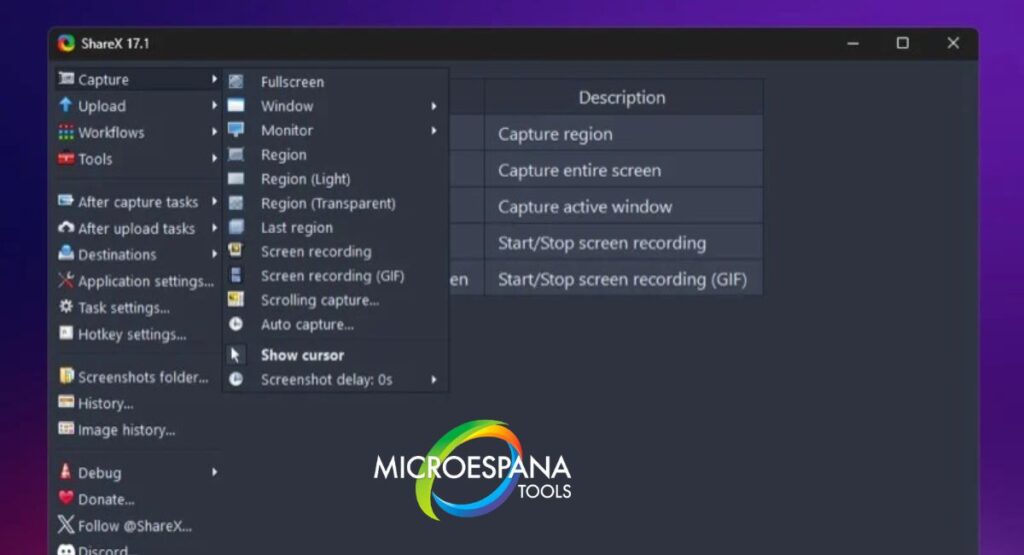
Figure 1: ShareX Capture Menu
Advanced Screen Recording Options
ShareX isn’t just about screenshots; it’s also an open-source screen recorder. It lets you record screen recording on Windows using FFmpeg, a high-quality video encoder that allows adjustable frame rate, audio input, and format selection. This makes it suitable for creating tutorials, gameplay captures, or troubleshooting demos.
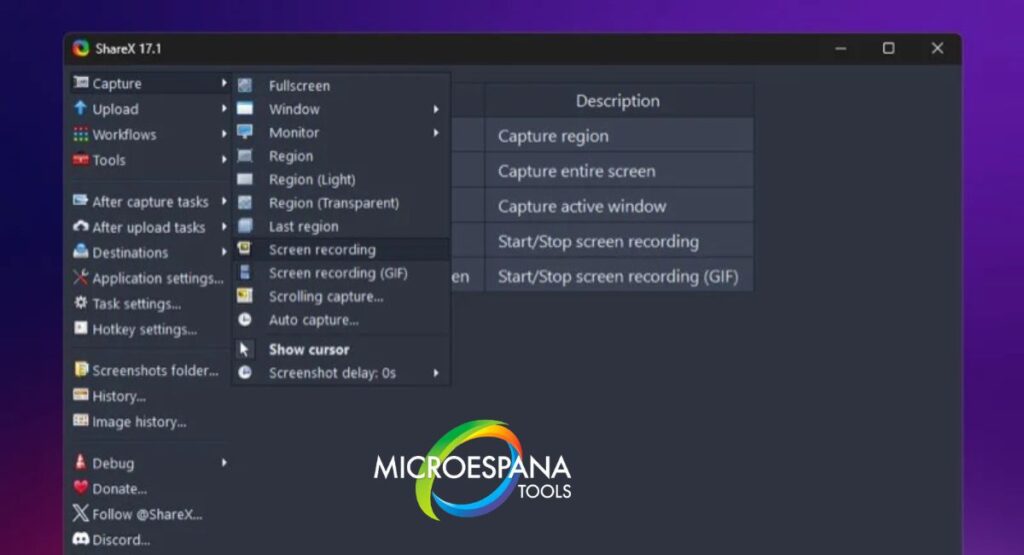
Figure 2: Recording Configuration
Built-in Image Editor for Quick Edits
ShareX includes a built-in image editing and annotation tool that lets users crop, blur, draw arrows, add text, or highlight parts of an image right after capture. It even offers an image beautifier and image thumbnail generator for quick visual adjustments.
Record GIFs and Videos Effortlessly
ShareX can record not just videos but also GIFs, using its GIF recorder mode. This is perfect for short, looping visuals that explain a quick process or feature. The Windows Snipping Tool doesn’t have any recording feature.
Comprehensive Annotation and Editing Tools
Detailed markup and annotation are essential for communication. ShareX gives users access to comprehensive annotation tools with layers, shapes, text, and image effects. You can label screenshots, highlight areas, and draw attention to specific elements effortlessly.
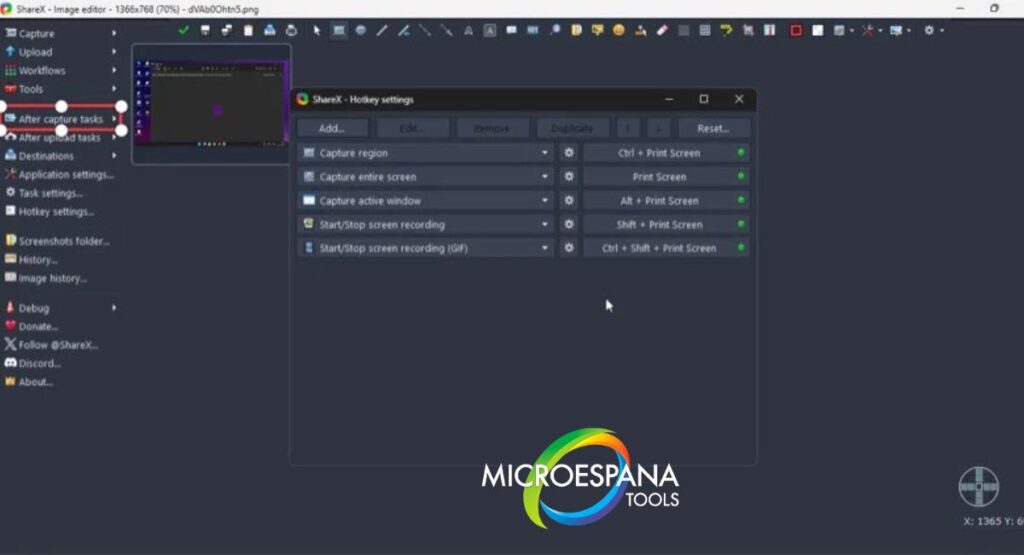
Figure 3: Image Annotation Editor
Extensive Customization Options
The customization in ShareX goes beyond themes and shortcuts. It includes adjustable upload destinations, file-naming rules, and export settings. You can also configure backup configurations (JSON) to save your preferences. The Snipping Tool lacks this depth.

Figure 4: Task Settings
Batch Operations and Automation Capabilities
A feature that separates ShareX from nearly all competitors is its batch processing. You can resize, rename, watermark, or apply filters to multiple images simultaneously. The automation in ShareX saves enormous time for designers and developers who handle large volumes of screenshots.
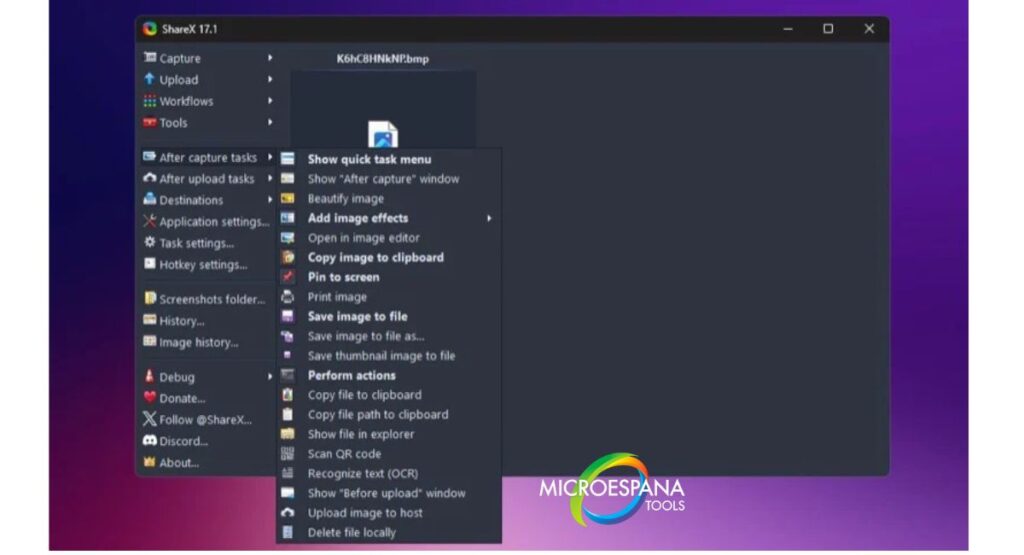
Figure 5: Automation Workflows
Additional Utilities for Extra Functionality
ShareX doesn’t stop at screenshots and recordings. It includes a suite of small but powerful tools like a color picker, ruler tool, image beautifier, metadata removal tool, and OCR (Optical Character Recognition).
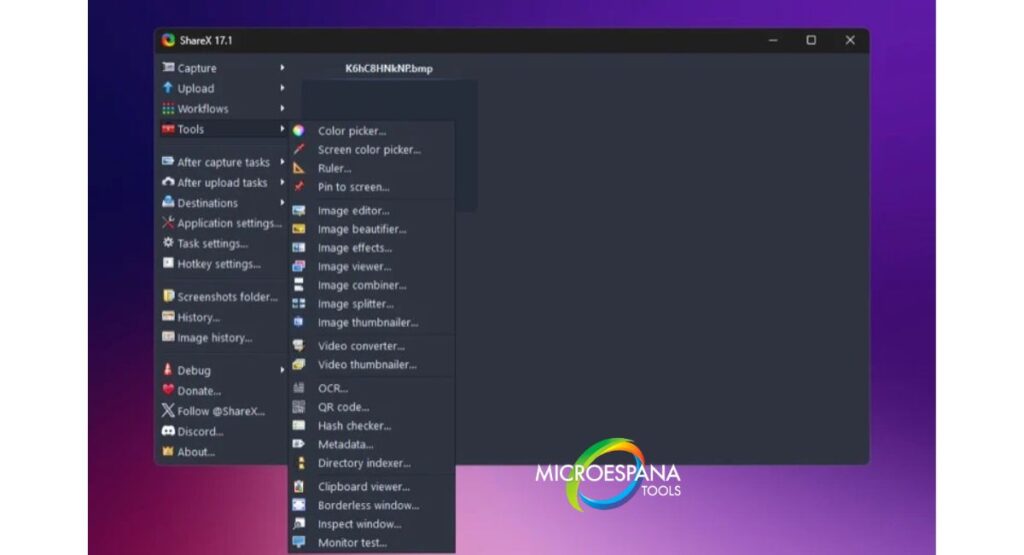
Figure 6: Tools Menu
Final Verdict — Which Screenshot Tool Wins?
Both tools serve their purpose, but their audiences are very different. The Snipping Tool is ideal for basic, everyday use. ShareX, however, is for professionals who demand precision, control, and speed.
| Category | Winner |
|---|---|
| Ease of Use | Windows Snipping Tool |
| Customization | ShareX |
| Screen Recording | ShareX |
| Editing Tools | ShareX |
| Overall Value | ShareX |
Conclusion
Choosing between ShareX and the Windows Snipping Tool depends on what you value more—simplicity or control. The Snipping Tool is perfect for quick screenshots, while ShareX is built for creators and professionals who want a complete visual capture system. If you’re looking to improve your Windows screenshot utilities and streamline your workflow, ShareX is the best choice for 2025.
FAQs — ShareX vs. Snipping Tool
Is ShareX free to use?
Yes. ShareX is 100% free and open-source software available for Windows. It doesn’t include ads or paid upgrades.
Does Snipping Tool support video recording?
No. The Windows Snipping Tool is designed for image captures only, with no screen recording support.
Is ShareX safe and open-source?
Yes. As open-source software, its code is publicly available and reviewed by a global community for safety and performance.
Can ShareX replace the Snipping Tool entirely?
Yes, for most users. ShareX performs everything Snipping Tool does and adds automation, sharing, and recording. However, if you prefer simplicity, the Snipping Tool still works for basic needs.